Running Firefly
For PPCC Staff — Training & Reference
This section covers everything you do behind the scenes as a Firefly administrator. The Parent Experience section shows what families see. This section shows what you see — and how to use the admin tools to support them.
Everything here uses the desktop experience on a computer, unless noted otherwise. Some tasks (like Chat and Notifications) also work well on your phone.
Getting Started
The Admin Dashboard
Purpose: Your home base — a quick snapshot of families, users, activity, and community engagement across the platform.
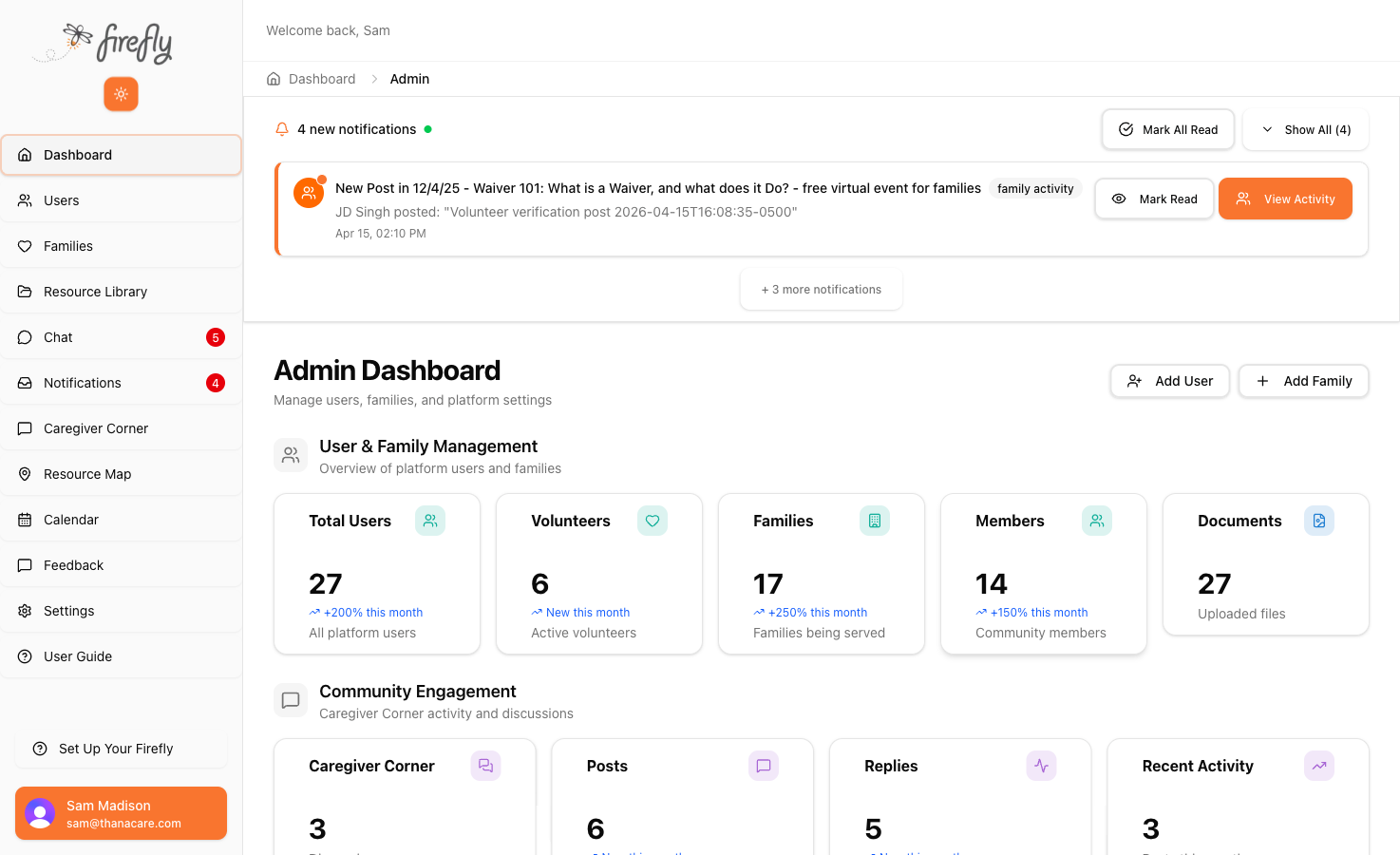
The dashboard shows:
- Notification banner at the top — new messages, family activity, and community posts. Tap “Mark All Read” to clear or “View Activity” to see details.
- Add User and Add Family buttons in the top right — the two most common admin actions, one tap away.
- User & Family Management — total users, volunteers, families, members, and uploaded documents at a glance.
- Community Engagement — Caregiver Corner activity: how many Corners exist, total posts, replies, and recent activity.
Outcome: You can see the health of the platform in 5 seconds. If a number looks off, tap the stat card to drill in.
Onboarding Families
Creating a New Family
Purpose: Set up a new LANTERN family in Firefly so they’re ready to sign in and start using the platform.
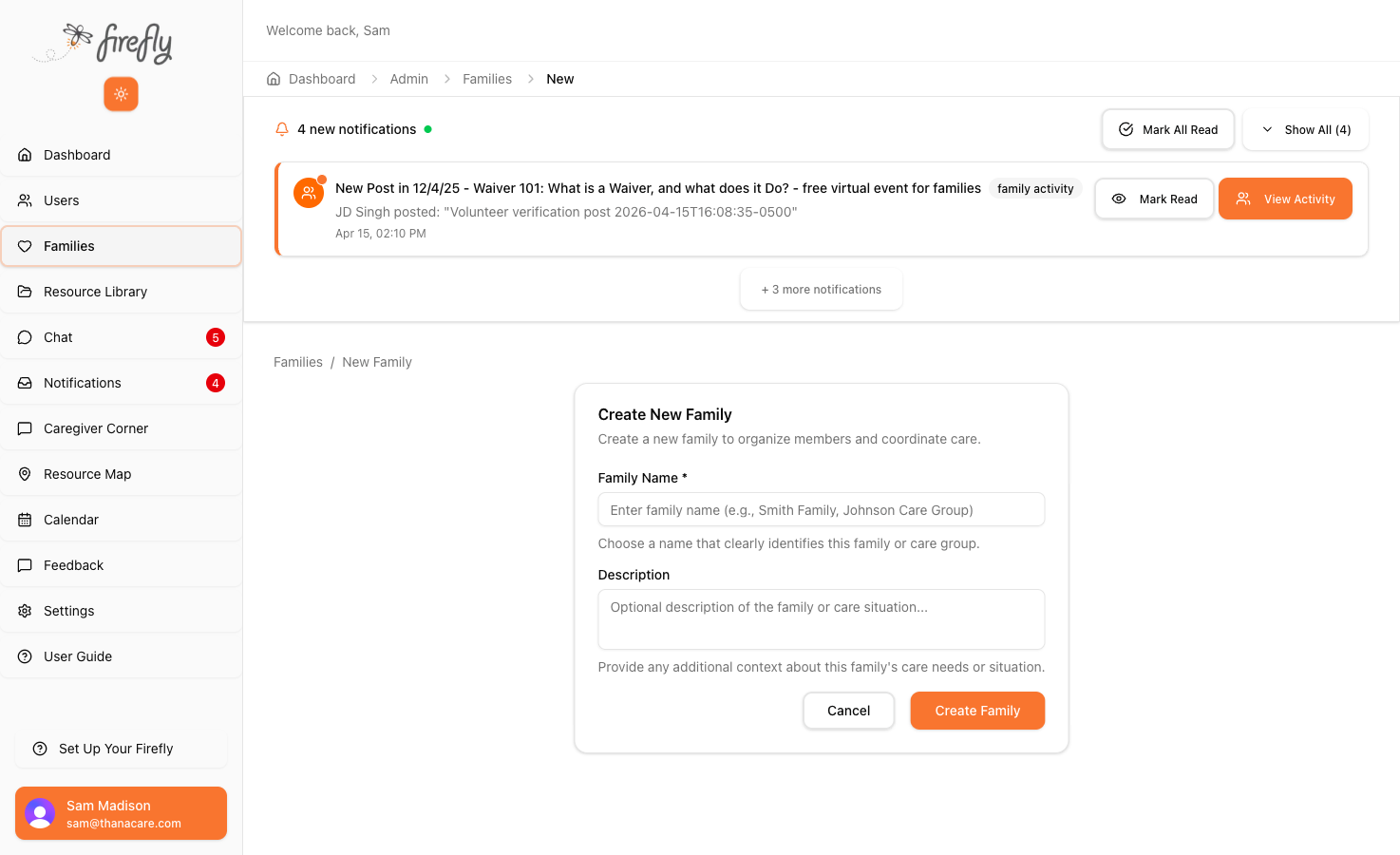
How to get here: From the Admin Dashboard, tap “+ Add Family” in the top right. Or from the sidebar, tap Families → “+ Create Family”.
- Type the Family Name (e.g., “Madison Family”, “Johnson Care Group”)
- Add an optional Description if helpful (e.g., “LANTERN cohort 1, referred by Rose”)
- Tap “Create Family”
What happens next: The family is created but empty. You now need to add people to it:
Adding the Primary Contact (Parent)
- Open the family you just created
- Tap “Add Member”
- Enter the parent’s name and email address
- Set their role to Primary Contact — this is the parent who manages the family’s information in Firefly
- Tap Save
The primary contact will receive an email invitation to sign in. When they do, they’ll land on their family dashboard and see the child picker, emergency card, and care plan forms.
Adding a Child
- From the family detail page, find the Children section
- Tap “+ Add Child”
- Enter the child’s first name, last name, and date of birth
- Add the primary diagnosis if known (e.g., “Epilepsy”, “Cerebral Palsy”)
- Add any allergies, blood type, and other medical details available from intake
- Tap Save
This creates the child’s profile, including their Emergency Card (visible to the parent from their dashboard) and their Health Profile.
Digital Care Plan (DCP) Templates
PPCC’s care plan templates are already published to the Digital Care Plan folder and visible to every family automatically — there is no admin “Assign Templates” step. When a family opens Digital Care Plan, they see the templates as “Needs Action” and can start filling them out right away.
Families choose which templates matter for their child:
- Favorite — mark a template as relevant so it appears at the top
- Hide — remove a template that doesn’t apply to this child
Favorites and hides are per-family — what one family hides, another still sees.
What this means for you: you don’t need to match templates to diagnoses or assign anything. Create the family, add the child, and Digital Care Plan is ready.
Outcome: The family is fully set up. The parent can sign in, see their child, and start filling out care plan forms immediately.
The Families Page
Purpose: See all families in the platform, search for a specific family, and access their details.
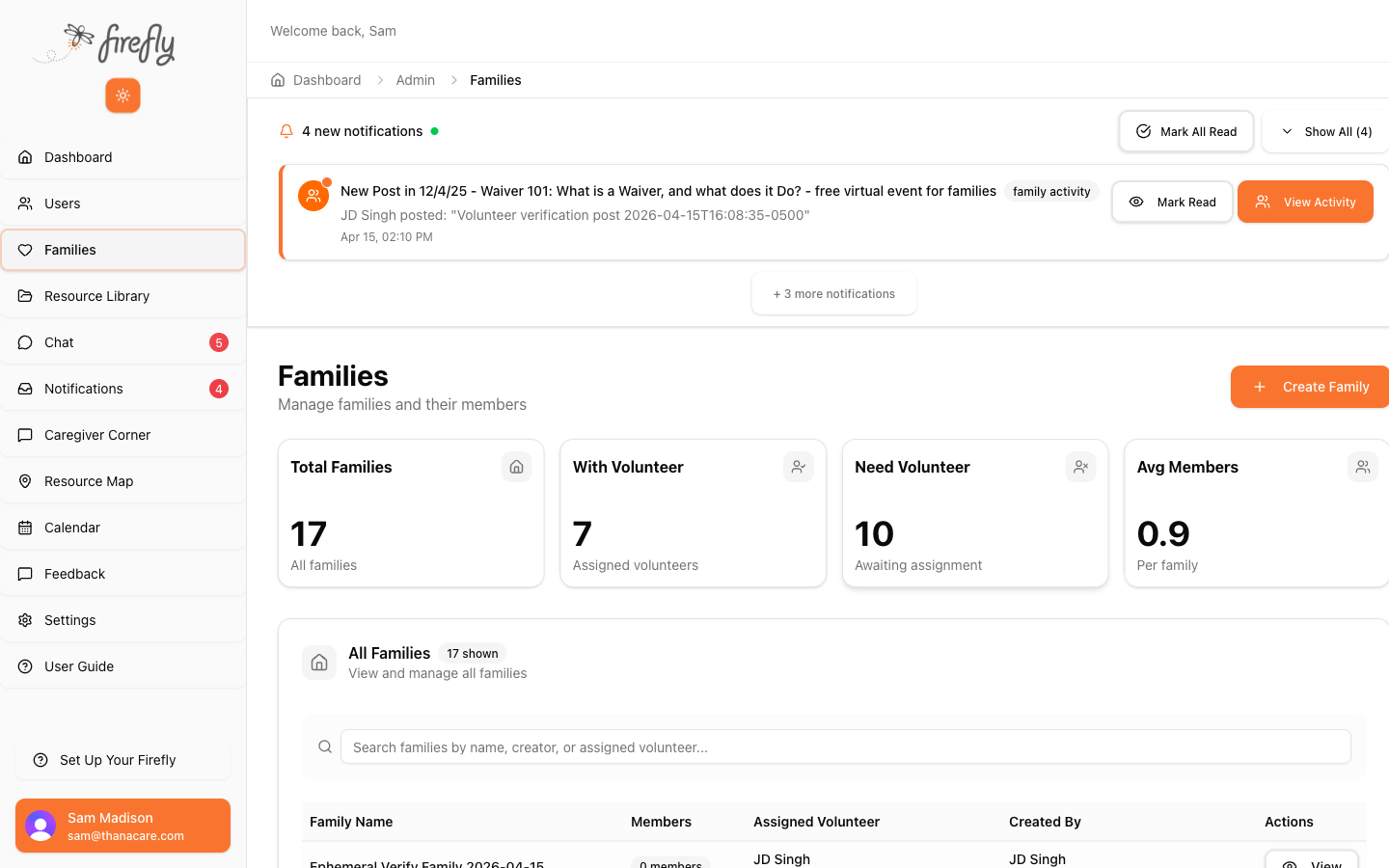
How to get here: Sidebar → Families
- Summary cards — Total Families, how many have an assigned volunteer, how many still need one, and average members per family.
- Search bar — find a family by name, creator, or assigned volunteer.
- Family list — each row shows the family name, number of members, assigned volunteer, who created it, and a View button.
Tap View on any family to see their full detail page — members, children, care plans, chat history, and shared documents.
Handing Off Credentials to a Family
Purpose: Give a family everything they need to sign in for the first time — clearly and without a support call.
Welcome to Firefly!
Your care plan app is ready. Here’s how to get started:
- Open firefly.yourvillages.org on your phone
- Enter your email: [parent’s email address]
- Check your email for a 6-digit code and type it in
- That’s it — you’re in!
Add Firefly to your home screen so you can open it like an app. The guide inside Firefly shows you how (look for “Set Up Your Firefly” in the menu).
Questions? Contact your PPCC navigator or email support@yourvillages.com
Walk them through the first sign-in if possible
The best handoff is in person — sit with the family for 2 minutes while they sign in on their own phone. If they can see their child’s Emergency Card on their first try, they’ll trust the app.
Outcome: The family has their login, knows how to reach it, and has signed in at least once before they leave the room.
Troubleshooting Login Issues
Purpose: Quickly resolve the most common problems when a family says “I can’t log in.”
| Problem | What to check | Fix |
|---|---|---|
| “I never got the code” | Check their email (including spam/junk). Confirm the email in Firefly matches. | Resend the code. If their email is wrong in Firefly, update it in Users. |
| “The code didn’t work” | Codes expire after 10 minutes. | Have them request a fresh code and enter it immediately. |
| “Email isn’t recognized” | Account may not exist yet or email typo. | Users → search for their name. If not found, create the user. |
| “I see nothing after sign-in” | Not assigned to a family or child not added. | Families → find their family → confirm member + child exists. |
Outcome: Most login issues resolve in under 2 minutes with the table above.
Managing Content
Resource Library
Purpose: Create, organize, and share educational materials, links, downloads, and program information with families.
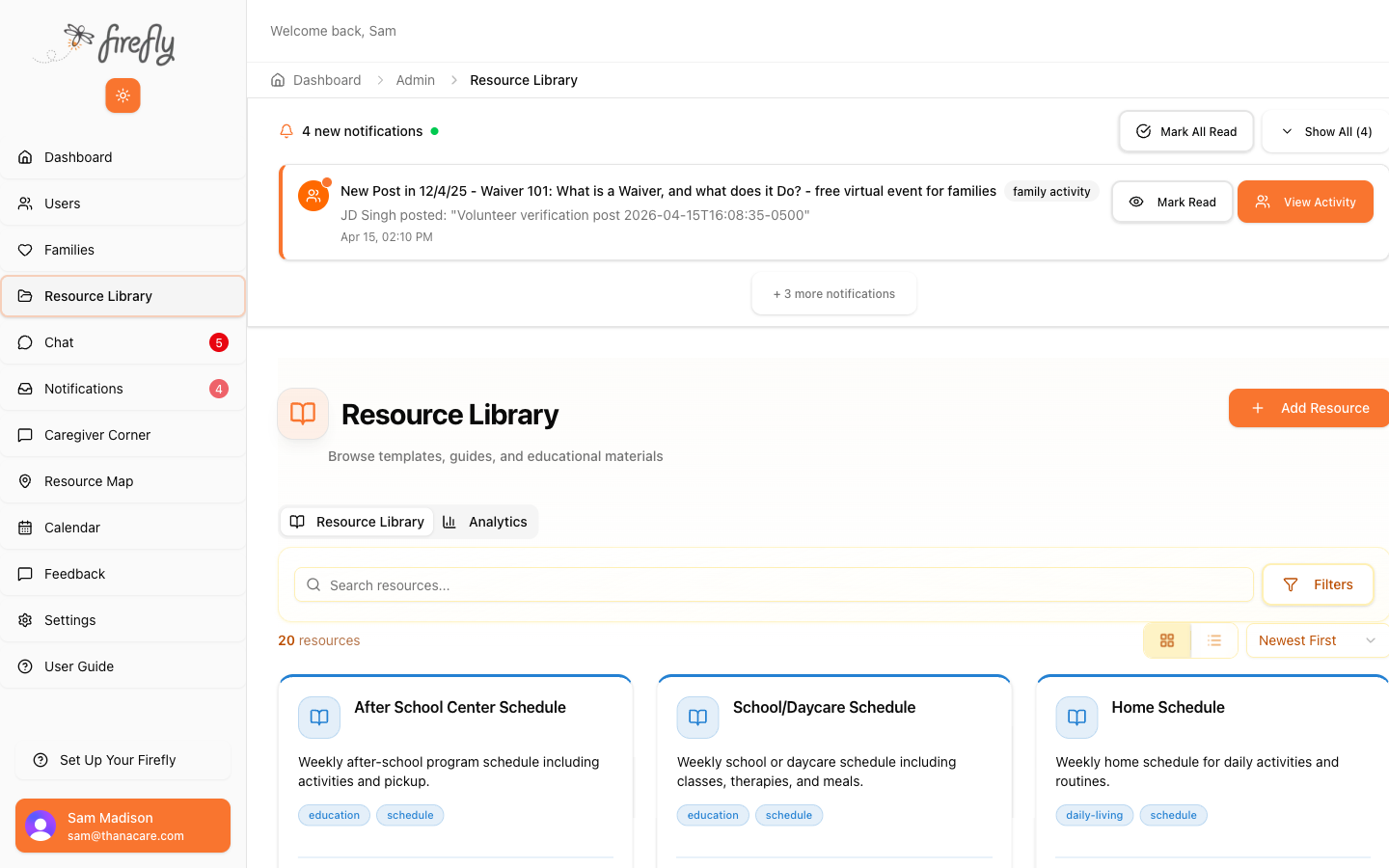
How to get here: Sidebar → Resource Library
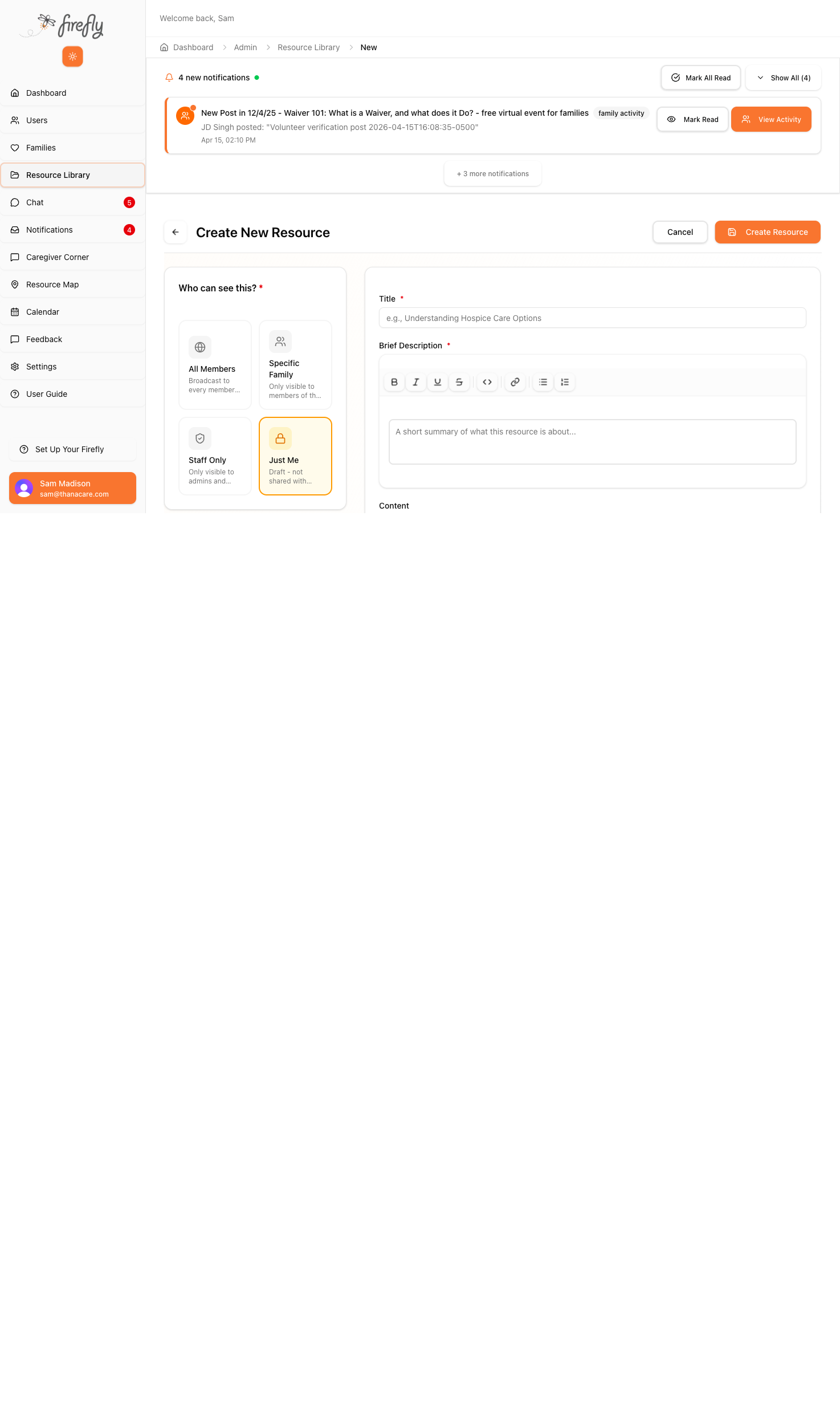
Creating a New Resource
- Tap “+ Add Resource”
- Choose “Who can see this?” on the left:
- All Members — every family sees it
- Specific Family — only one family sees it
- Staff Only — admins and volunteers only
- Just Me — draft mode
- Enter a Title and Brief Description (both required)
- Add Content in the rich text editor
- Optionally attach a file (PDF, image, or document)
- Add tags and choose a Member Folder
- Tap “Create Resource”
Outcome: The resource appears immediately. Families see it the next time they open that folder.
Caregiver Corner
Purpose: Create and moderate discussion spaces where LANTERN parents can connect, ask questions, and support each other.
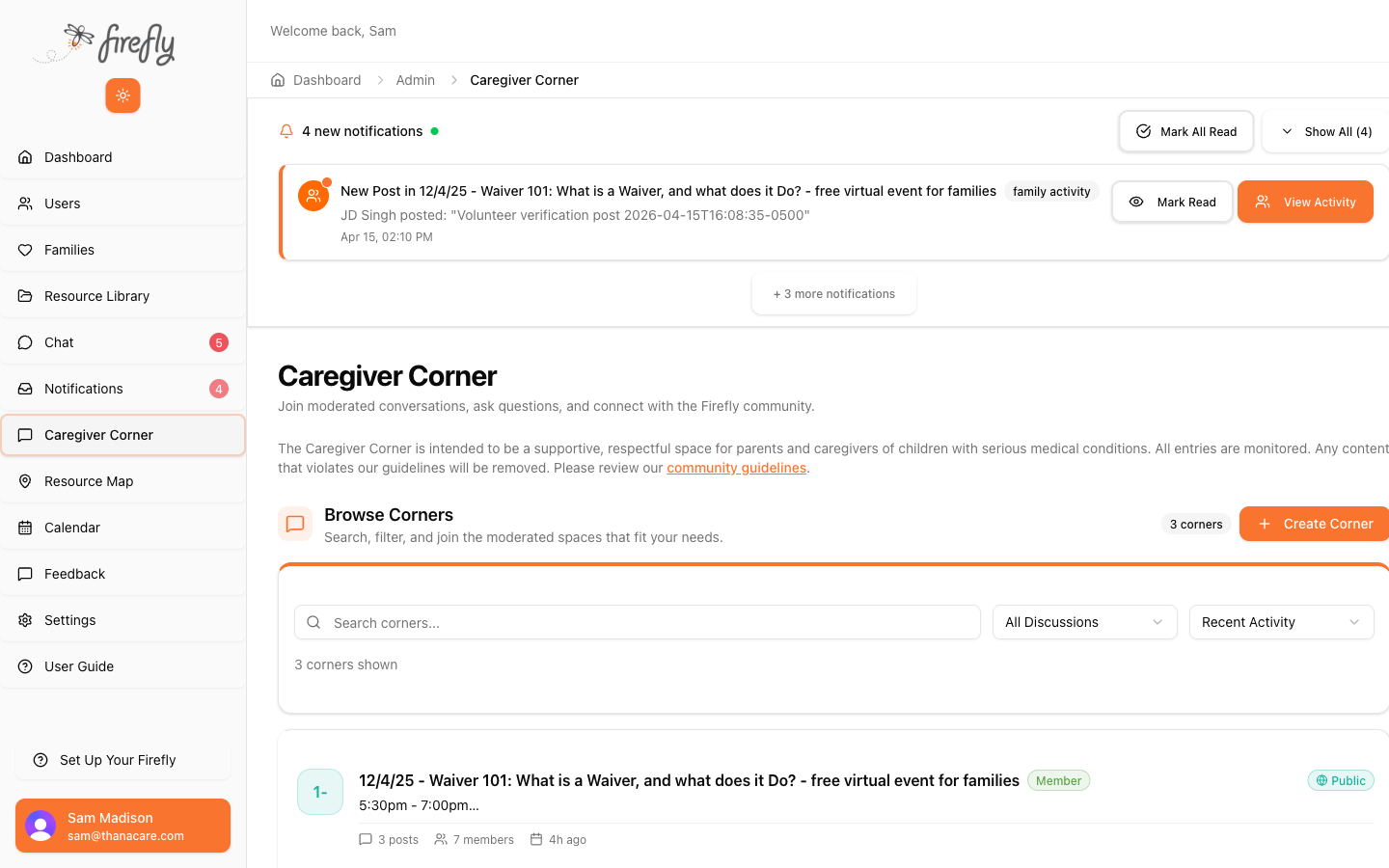
How to get here: Sidebar → Caregiver Corner
- Tap “+ Create Corner”
- Enter a title and description
- Choose Public or Member access
- Tap Create
As an admin, you can see and moderate all posts in all Corners.
Outcome: Caregiver Corner gives families a space to help each other. You create the Corners, families fill them.
Platform Analytics
Purpose: See how families are actually using Firefly — at the platform level and at the individual resource level.
Platform-level analytics
The Admin Dashboard is your platform-wide view: family counts, user counts, community engagement, and recent activity. Open it any time you want a quick pulse check.
Resource Library analytics
The Resource Library has its own Analytics tab that shows how families are engaging with everything you’ve published — library-wide, not one resource at a time.
- Sidebar → Resource Library
- Tap the Analytics tab at the top of the page (next to the Resource Library tab)
- Pick a time range (default: Last 30 days)
You’ll see four tiles at the top — Total Views, Total Clicks, Downloads, Unique Users — each with a comparison against the previous period. Below that, a Views Over Time chart shows engagement trending up or down over the selected window.
Outcome: You can answer “what’s working?” with data, not guesswork.
Staying Connected
Chat
Purpose: Send and receive messages directly with families and other staff — from your computer or your phone.
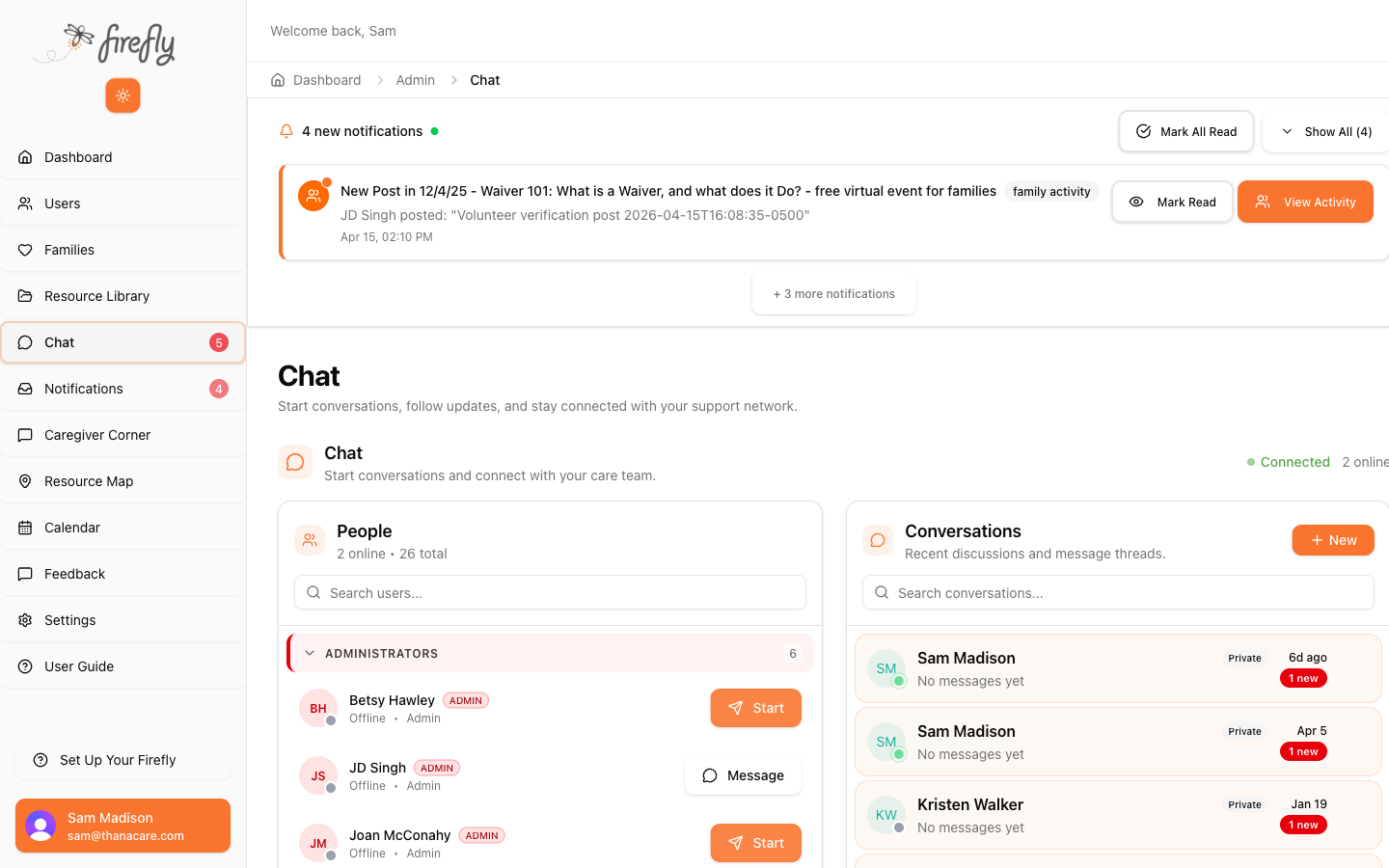
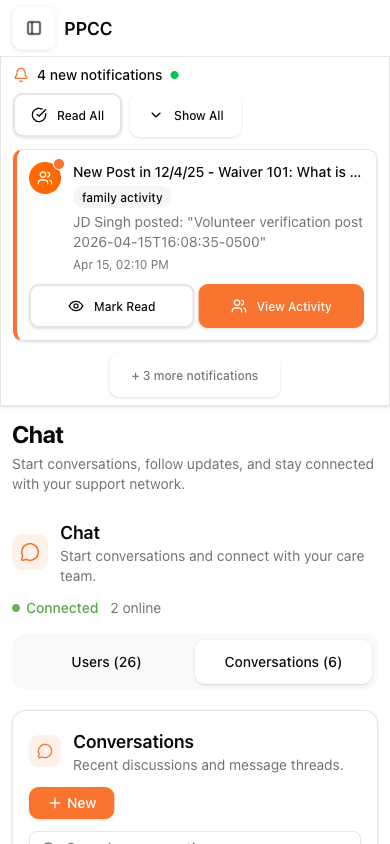
How to get here: Sidebar → Chat
- Tap “+ New”
- Choose Private or select multiple people for a group thread
- Pick the person and type your message
- Tap Send
Outcome: Chat is the fastest way to reach a family without leaving Firefly. Messages are saved.
Announcements
Purpose: Broadcast a message to every member at once — program updates, event reminders, policy changes, or anything the whole community needs to hear.
Announcements live inside Chat. Instead of picking one family, you send to all members in a single action.
How to get here: Sidebar → Chat
- Tap “+ New”
- Choose Announcement (instead of Private or Family Chat)
- Write your message
- Tap Send
The message lands in every member’s chat. Families see it alongside their direct conversations and are notified the same way.
Outcome: When the whole cohort needs to hear something, one message reaches all of them without a group email.
Notifications
Purpose: See all platform activity in one place — new messages, family updates, community posts, and system alerts.
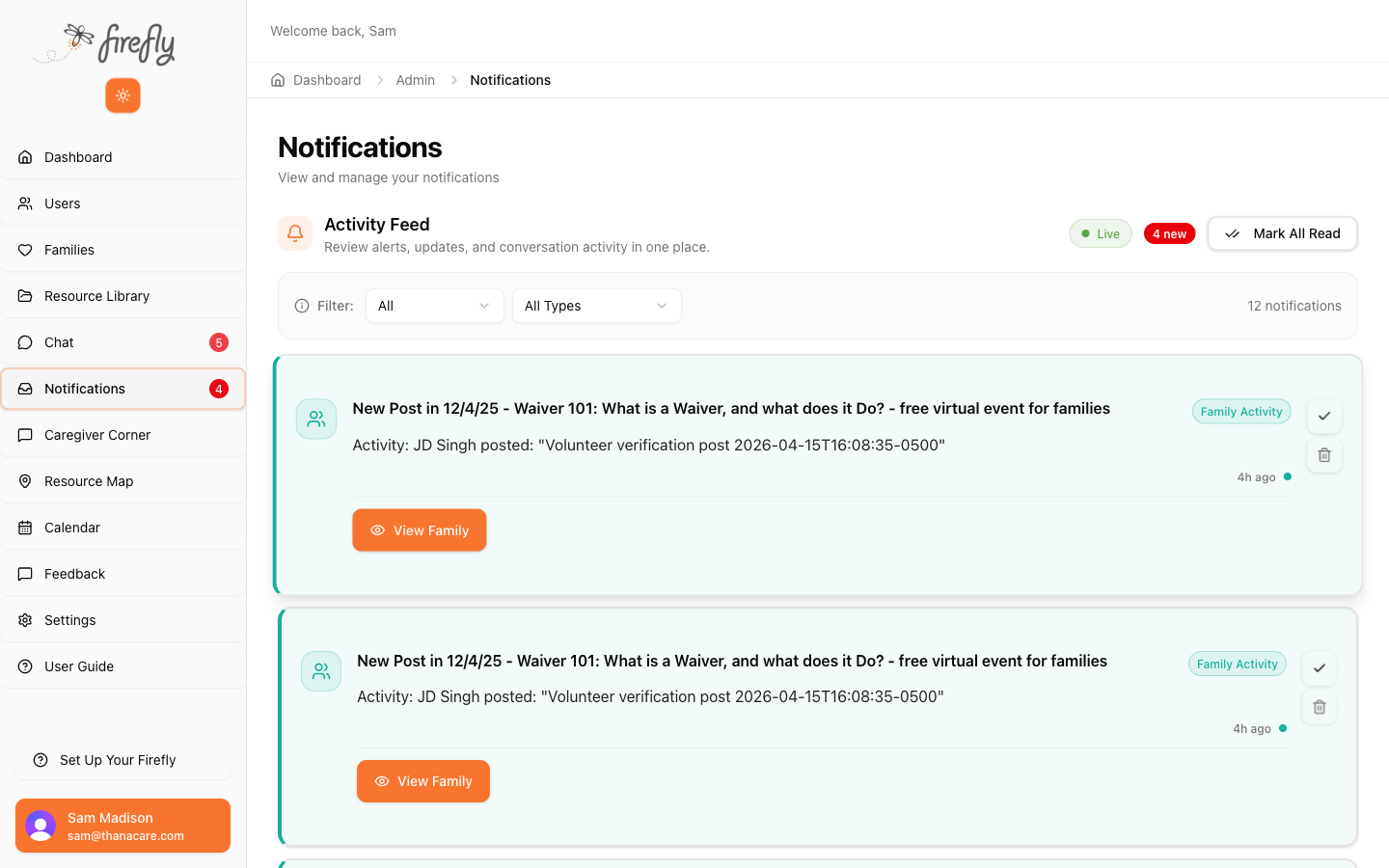
How to get here: Sidebar → Notifications
Each notification shows what happened, when, and a quick action button so you can jump straight to the relevant page.
Outcome: Check once or twice a day to stay on top of what’s happening across the platform.
Managing Users
Users & Roles
Purpose: See everyone on the platform, add new users, and manage their access level.
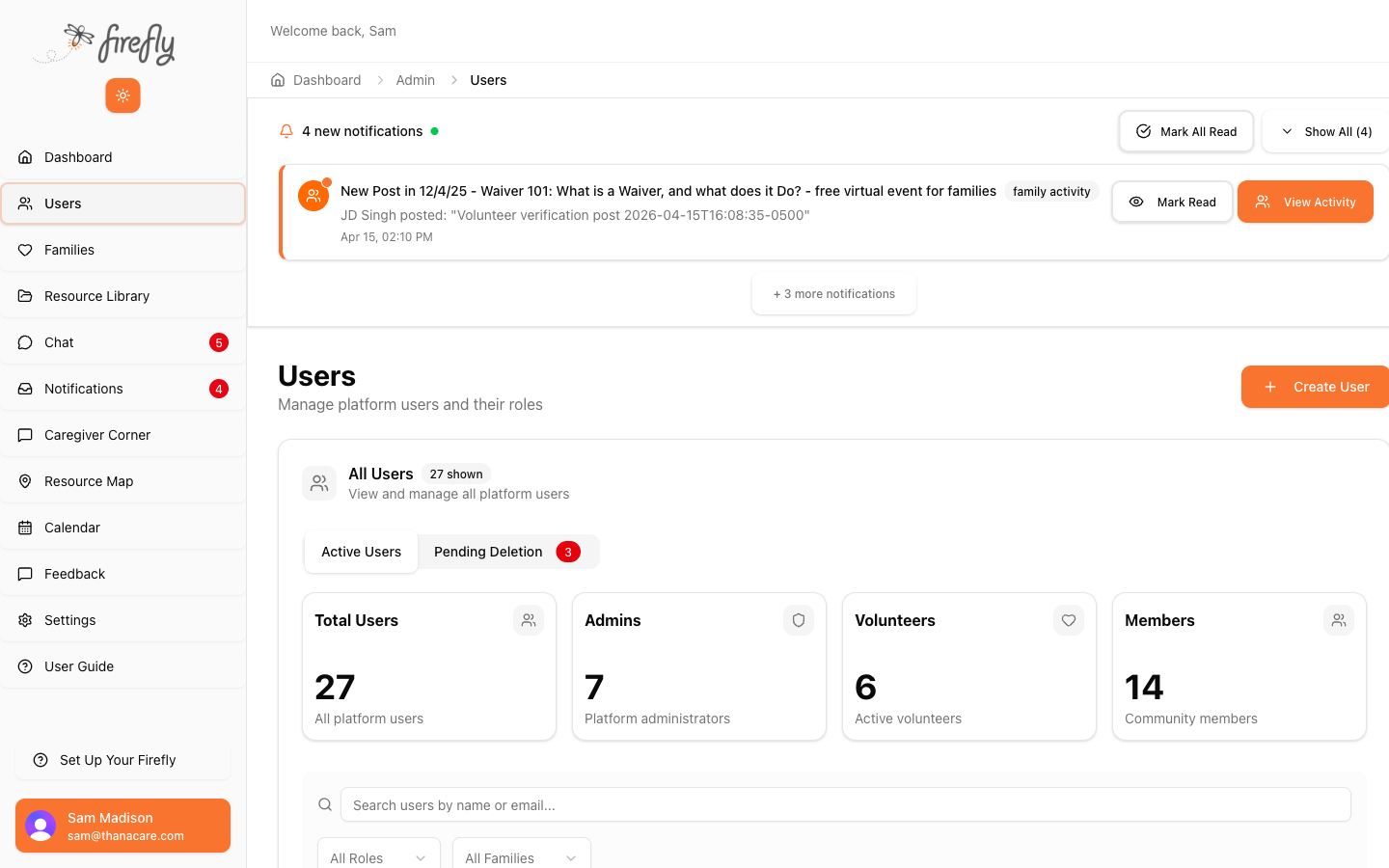
How to get here: Sidebar → Users
- Tap “+ Create User”
- Enter their name, email, and choose their role:
- Admin — full platform access (PPCC staff)
- Volunteer — can manage assigned families
- Member — family members (parents, caregivers)
- If Member, assign them to a family
- Tap Create
Outcome: New staff, volunteers, and family members get platform access in under a minute.
Before Launch Day
First-Login QA Checklist
Purpose: Verify a family’s account is ready before handing them their credentials.
Run through this checklist for each pilot family after setup but before giving them their login:
- Welcome email renders. Send a test welcome email from prod. Open it on a phone — does it look right?
- First-login flow works. Sign in with the parent’s email on a phone. Does it land on the dashboard?
- Emergency Card shows the child. Is the child’s name, allergies, rescue meds, and blood type visible?
- Digital Care Plan loads. Does Digital Care Plan show the full list of PPCC templates as “Needs Action” for the child?
- Chat works. Can you send a message from admin and see it arrive on the parent’s view?
- Mobile viewport tested. Does everything look right on a phone screen?
If any check fails, fix the issue before handing off credentials.
Pre-Provisioning Pilot Families
Purpose: Set up all pilot families before launch day so Day 1 isn’t a scramble.
- Get the list from PPCC — how many families, which ones, parent names and emails
- Create each family following the steps above
- For each: add primary contact and add child(ren) — DCP templates are already published and will appear automatically
- Run the QA Checklist for each family
- Queue welcome emails — don’t send yet, wait for launch-day green light
- Spot-check — have a second person verify 2–3 families look correct
Outcome: On launch day, you hand out credentials and families sign in to an account that already has their child’s profile and care plan templates waiting.
Reference
Quick Reference
| I want to… | Here’s how |
|---|---|
| Add a new family | Dashboard → “+ Add Family” or Sidebar → Families → “+ Create Family” |
| Add a member to a family | Families → [family name] → Add Member |
| Add a child to a family | Families → [family name] → Children → “+ Add Child” |
| See a family’s care plan progress | Families → [family name] → Digital Care Plan (templates auto-publish; families hide/favorite) |
| Send an announcement to all families | Sidebar → Chat → “+ New” → Announcement |
| See platform analytics | Sidebar → Dashboard (platform) or Resource Library → Analytics tab (library-wide engagement) |
| Create a resource | Sidebar → Resource Library → “+ Add Resource” |
| Send a message to a family | Sidebar → Chat → “+ New” → choose the person |
| Create a Caregiver Corner | Sidebar → Caregiver Corner → “+ Create Corner” |
| Add a new admin user | Sidebar → Users → “+ Create User” → role: Admin |
| Check platform stats | Sidebar → Dashboard |
| See all notifications | Sidebar → Notifications |
| Find a specific family | Sidebar → Families → search bar |
| Troubleshoot a login issue | See “Troubleshooting Login Issues” above |
| Verify a family is ready | See “First-Login QA Checklist” above |
Admin Sidebar Map
| Sidebar Item | What It Does |
|---|---|
| Dashboard | Platform overview — stats, quick actions, notification banner |
| Users | Manage all platform users and their roles |
| Families | View, create, and manage family accounts |
| Resource Library | Create and organize educational resources for families |
| Chat | Message families and staff directly |
| Notifications | Activity feed — new messages, posts, family events |
| Caregiver Corner | Create and moderate parent community discussions |
| Resource Map | Interactive map of nearby services and resources |
| Calendar | Upcoming events and program schedule |
| Feedback | Read feedback submitted by families through the app |
| Settings | Platform configuration and preferences |
| User Guide | This guide — accessible from inside Firefly too |
This guide reflects the admin experience as of the April 2026 launch.
Firefly by Your Villages — Care Coordination for Families
Questions? Contact Sam Madison or email support@yourvillages.com