Getting Started with Firefly
For PPCC Staff — Training & Reference
This guide is written for PPCC staff to understand what families experience in Firefly, train families on how to use it, and test the app themselves. Everything assumes the family member is using Firefly on their phone, because that's how most parents will use it. Firefly works on a computer too, but it's designed for mobile.
Firefly was built to help reduce the burden of care for LANTERN families by keeping medical information, care plan documents, and family resources in one place — on their phone, where they actually need it. At the doctor's office, on the couch after bedtime, in the ER at 2am.
This guide walks through everything Firefly does and how families will use it. Each section describes what the family member sees and how to complete key tasks — useful both for training families and for testing the app yourself as a member user.
Before You Start Testing
Two quick orientation reads before you dive in. They'll help you test efficiently and know what's fair game for feedback.
Lightning Bug, Translated
Firefly is the next generation of Lightning Bug for LANTERN families. Every section of Lightning Bug has a corresponding place in Firefly — sometimes renamed, sometimes reorganized, always with the goal of being faster and more useful in the moments that matter.
The table below is the shortest answer to the question you're probably asking: "Does Firefly do what Lightning Bug did?"
What Lightning Bug had, and where it lives in Firefly
| Lightning Bug section | Firefly equivalent | Status |
|---|---|---|
| Insurance | Health Profile → Insurance | Phase 2 |
| Medications | Health Profile → Medications (rescue meds highlighted on the Emergency Card) | Phase 2 |
| Primary Doctor + Specialists | Health Profile → Specialists (one marked as primary, always shown first) | Phase 2 |
| Pharmacy | Health Profile → Pharmacy (linked to the child's medications) | Phase 2 |
| Diagnoses | Health Profile → Diagnoses (each linked to its treating specialist) | Phase 2 |
| Surgeries | Health Profile → Surgical History (timeline view) | Phase 2 |
| Allergies | Health Profile → Allergies (with "Actions to Take" — front and center in emergencies) | Phase 2 |
| Diet | Health Profile → Diet & Nutrition | Phase 2 |
| Download Care Info | Share Emergency Card (PDF or text). A full Care Info PDF that exports every clinical section at once is a fast-follow after launch. | Partially live |
What Firefly adds that Lightning Bug didn't have
| Feature | Why it matters for your families | Status |
|---|---|---|
| Quick Capture | A parent can voice-log or type a care event in seconds. Firefly figures out which form it belongs in and files it automatically. | Live |
| Digital Care Plan (52 PPCC templates) | The entire PPCC care plan binder, on a phone. Fill it once, share it with anyone who needs a copy. | Live |
| Share Emergency Card | In two taps, a parent hands off their child's critical info to a school nurse, babysitter, or ER team — as a PDF or plain text they can paste into a message. | Live |
| Caregiver Corner | A private space for PPCC parents to connect with each other and share what they're living through. | Live |
| Resource Library | PPCC-curated resources, organized by folder — all in one place. | Live |
| Chat with PPCC | Direct messaging between families and their PPCC care team, inside the app. | Live |
| Calendar & Resource Map | PPCC events and local services on an interactive map. | Live |
If there's a specific Lightning Bug feature you'd expect to see here that isn't in either table, that's valuable to know — use the Feedback button and tell us.
What Firefly Won't Do (Yet)
Being upfront about limits is more useful than pretending they don't exist. Here's what Firefly is not trying to do — so you don't have to report these as bugs, and so you know where the edges are.
- Firefly won't send text messages or emails on a family's behalf. When a parent taps Share on the Emergency Card, Firefly hands them a PDF or copied text — the parent sends it through their own Messages, Mail, or AirDrop. This keeps families in control of who gets sensitive information, and it's also why there's no "Send to School" button inside the app.
- Firefly won't sync with Lightning Bug. This is a migration, not a bridge. When a family moves to Firefly, their Lightning Bug data doesn't flow back and forth. Krista, Rose, and other PPCC staff will help families transfer their information once.
- Firefly is the family's copy, not the clinic's. Doctors and hospitals still use their own medical record systems. Firefly is what the family carries, shares, and updates — it's not connected to a specialist's electronic health record.
- Firefly doesn't add appointments to a parent's phone calendar automatically. PPCC events show in the Firefly calendar, but parents still add appointments manually to their own phone calendar if they want them there.
- Firefly needs a connection to save new information. Recently-viewed data is cached so families can reference it on a spotty connection, but creating brand-new entries requires being online.
If something a family would actually need is on this list, that's worth flagging. Some of these are deliberate design choices, some are trade-offs we'd revisit if we heard enough from families. Either way, we want to know.
How to Find What You Need in This Guide
The guide is long because Firefly does a lot. You don't have to read it in order. If you have a specific question you're trying to answer, start here:
Three Families to Keep in Mind
Firefly only works if it works for real PPCC families. As you test, it helps to have a few concrete people in mind — not hypothetical parents, but the kinds of families LANTERN actually serves. Here are three composite archetypes drawn from publicly available research on Pennsylvania children with medical complexity. None of them is a specific PPCC family. If anything here doesn't match what you see day-to-day, tell us through the Feedback button and we'll adjust.
The scenarios further down in this guide reference these three families by name. Knowing them makes the walkthroughs land.
Ana & Mateo — the ER at 2am
Who they are. Ana is a single mom in Pittsburgh. Her son Mateo is seven. He has focal-onset epilepsy with two to four breakthrough seizures a month despite medication, and mild cerebral palsy — he walks with a walker and wears AFOs. Ana works full-time at a hospital in billing — the first job she found that was flexible enough to handle ER visits and carried family insurance. Her parents help with pickups when they can.
Mateo's team. Pediatric neurologist at UPMC Children's, GI, orthopedics, physical therapy, occupational therapy, speech, and a developmental pediatrician — seven specialists, not counting his pediatrician and the school nurse he sees most days. Rescue medication is Diastat for seizures lasting more than three minutes. He has an IEP and a 504 plan.
Their Firefly moments. Ana is the family most likely to tap the Share button on the Emergency Card — to hand off Mateo's rescue med dose to the school nurse at the start of the year, to the after-school program staff, and to her parents when they pick Mateo up. She's also the family most likely to end up in the Tuesday-night ER, phone in hand, tired.
The Washingtons — twins, two parents, full-time care
Who they are. Denise and Marcus Sr. live in a suburb of Pittsburgh with their three-year-old twins, Kiara and Marcus Jr. Both twins were born at twenty-six weeks and spent the first four months of their lives in the NICU. Both now have chronic lung disease and rely on supplemental oxygen at night. Kiara has a tracheostomy; both have G-tubes. Denise left her retail job when the twins came home — she's the primary caregiver. Marcus Sr. drives for a delivery company and picks up overtime when he can.
The twins' team. Pulmonology, ENT for trach management, GI, feeding therapy, PT, OT, cardiology, and developmental follow-up — roughly eight specialists between them, some shared, some child-specific. A home nurse covers forty hours a week and the family pays out of pocket for the rest. Medical supplies arrive in monthly shipments that Denise has to unbox, inventory, and store.
Their Firefly moments. The Washingtons are the family most likely to use the multi-child picker constantly, to need a distinct Emergency Card per child (because what's true for Kiara isn't true for Marcus Jr.), and to hand off information to a night nurse or respite caregiver. They're also the family most likely to notice if Firefly ever confuses one child's data with the other — and if that happened on a medication dose, it would be a disaster.
Ruth & Jayden — grandmother as legal guardian
Who they are. Ruth is sixty-two. Her fifteen-year-old grandson Jayden moved in with her when he was six, after his biological mother entered treatment for substance use disorder. Jayden has Duchenne muscular dystrophy. He was diagnosed at four. At fifteen, he uses a power wheelchair full-time, sleeps on BiPAP, uses an assisted cough device, and is scheduled to receive a G-tube next month. Ruth is his legal guardian and holds medical power of attorney — she finished the Pennsylvania MPOA paperwork with a notary last week.
Jayden's team. The neuromuscular clinic at UPMC, pulmonology for BiPAP and airway clearance, cardiology for DMD-related cardiomyopathy monitoring, palliative care, PT, OT, a school nurse at his high school, and his IEP team. He's also in PPCC's transition-to-adulthood planning.
Their Firefly moments. Ruth is the family most likely to need the Medical Power of Attorney form in the Digital Care Plan, to care deeply about who can see Jayden's information (she's thinking about what happens if she has a health event of her own), and to use the Care Info PDF when they travel to appointments. She still carries a red three-ring binder of Jayden's care plan to every visit — Firefly is the thing that lets her put it down.
The First 5 Minutes
Signing In
Purpose: Families sign into Firefly using just their email — no passwords to remember.
When a family member opens firefly.yourvillages.org in their phone's browser, they'll see the Firefly logo and a "Welcome back" screen.
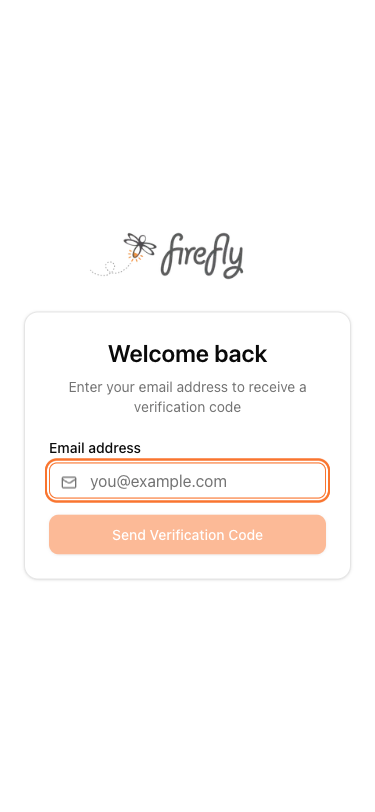
- Type the email address (the one PPCC set up for the family member)
- Tap "Send Verification Code"
- Check email — a 6-digit code arrives
- Type the code in and tap "Verify & Sign In"
- Check the spam or junk folder. Search for "Firefly" or "yourvillages" — the code usually arrives within 30 seconds.
- Mark Firefly as a trusted sender so future codes land in the inbox:
- Gmail: Open the email, tap the three-dot menu, and tap "Report not spam." Then tap the sender's name and choose "Add to Contacts."
- Apple Mail (iPhone/iPad): Open the email, tap the sender's name at the top, and tap "Add to VIPs" or "Add to Contacts."
- Outlook: Open the email, tap "Not junk," then add the sender to Safe Senders under Junk Email settings.
- Wait 60 seconds and resend. If the code still hasn't arrived, tap "Send Verification Code" again — a fresh code is issued each time.
- Still nothing? Contact the family's PPCC navigator to confirm the email address on file.
Outcome: The family member is signed in. No passwords to remember. Every time they sign in, they receive a fresh code by email.
Firefly will also sign the user out automatically after a period of inactivity — that's on purpose. It protects the child's medical information if the phone is ever lost or left somewhere.
Add Firefly to Your Home Screen
Purpose: Adding Firefly to the phone's home screen lets families open it like any other app — no need to type the web address each time. Walk families through these steps during onboarding.
iPhone — Safari
- Open firefly.yourvillages.org in Safari
- Tap the Share button (square with arrow) at the bottom of the screen
- Scroll down and tap "Add to Home Screen"
- Tap "Add" in the top-right corner
- Firefly now appears on the home screen
iPhone — Chrome
- Open firefly.yourvillages.org in Chrome
- Tap the Share button (square with arrow) at the top
- Tap "Add to Home Screen"
- Tap "Add" to confirm
iPad — Safari
- Open firefly.yourvillages.org in Safari
- Tap the Share button (square with arrow) in the top-right corner of the screen — on iPad it's at the top, not the bottom like on iPhone
- Scroll down and tap "Add to Home Screen"
- Tap "Add" in the top-right corner
- Firefly now appears on the home screen
Android — Chrome
- Open firefly.yourvillages.org in Chrome
- Tap the three dots menu in the top-right corner
- Tap "Add to Home screen"
- Tap "Add"
- Firefly now appears on the home screen
Android Tablet — Chrome
- Open firefly.yourvillages.org in Chrome
- Tap the three dots menu in the top-right corner
- Tap "Add to Home screen" (some tablets show this as "Install app")
- Tap "Add"
- Firefly now appears on the home screen
Android — Other Browsers (Firefox, Samsung Internet, etc.)
- Open firefly.yourvillages.org
- Tap the menu (usually three dots)
- Look for "Add to Home screen" or "Install"
- Confirm
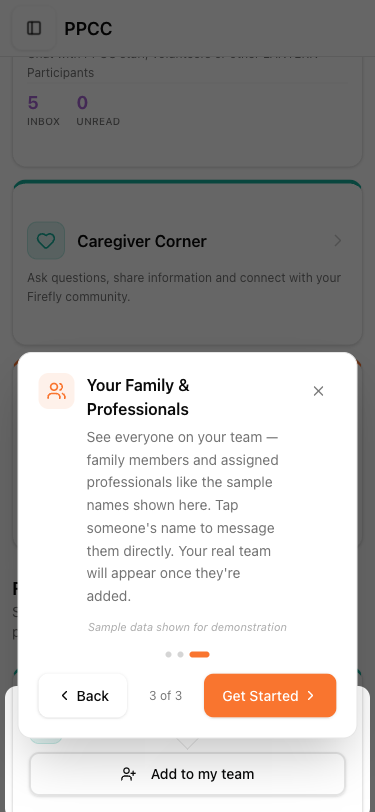
Your First Look: The Fly with Firefly Tour
Purpose: A 1-minute walkthrough of Firefly's main features — runs automatically the first time a family member signs in.
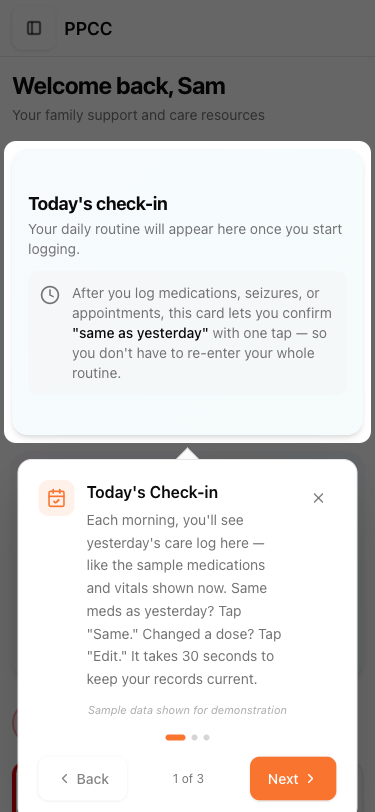
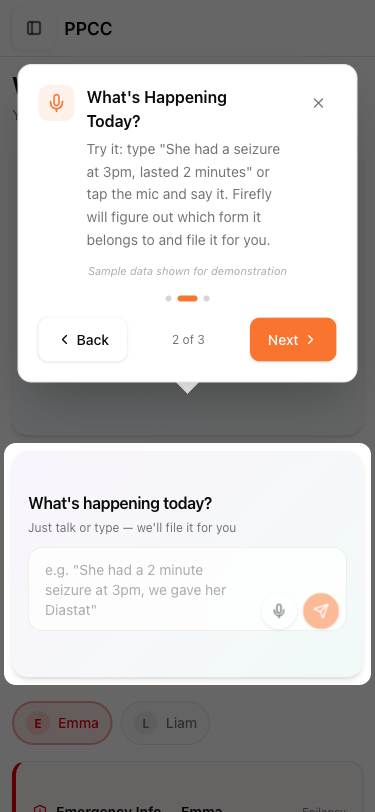
The tour highlights the three things families will use most:
- Today's Check-in — a quick daily log of how the child is doing
- What's Happening Today? — a place to type in something that just happened (like "she had a seizure at 3pm") and Firefly files it automatically
- Your Family — where families see their children and family members
How to Retake the Tour
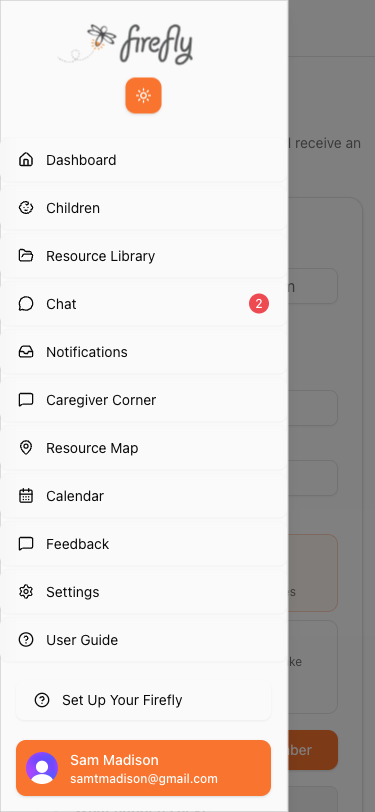
- Tap the three lines in the top-left corner to open the menu
- Tap "Set Up Your Firefly" near the bottom of the menu
- Uncheck any completed items to reset them
- Tap "Retake this tour"
Set Up Your Firefly — The First-Day Checklist
Purpose: Right after the tour, Firefly shows families a short setup checklist. It's the fastest way to get a new family from "signed in" to "Firefly is useful today." Walking this in order is the single best thing a navigator can do during onboarding.
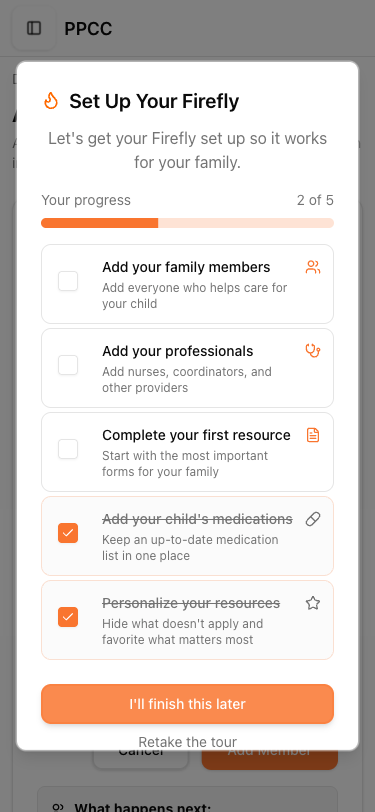
The checklist has six steps. They can be done in any order, and families can close it and come back to it anytime from the menu. A progress bar at the top shows how many steps are done.
- Add your family members. Add the other adults who help care for the child — a partner, a grandparent, a home nurse. Everyone who's added will be able to see the child's information and help keep it current.
- Add your professionals. Add the nurses, care coordinators, and providers who support the family. Professionals get read-only access to the child's care information for the work they do — they can see what's there to help the family, but they cannot edit anything. The parent stays in control of what's added or changed.
- Add your child's profile. This is the one step that unlocks most of Firefly for the family. Until a child's profile is added, the Emergency Card and the Digital Care Plan forms have nothing to display. It's the step we'd encourage every family to do first.
- Complete your first care plan form. Firefly suggests Emergency Information as the first form to tackle — it's the one that feeds the Emergency Card and matters most on a hard day.
- Add your child's medications. A current medication list is the single most valuable thing to share with a new provider, a school nurse, or an ER team.
- Personalize your resources. Families will be able to favorite the resources most relevant to their child and hide ones that don't apply, so the library feels tailored to their situation.
Adding a child from the checklist
- In the Set Up Your Firefly dialog, tap "Add your child's profile"
- Fill in the First Name (required), and anything else that's handy: last name, date of birth, blood type, primary diagnosis, and any allergies
- Tap Additional Details to add optional information like insurance, Medicaid ID, dietary restrictions, and notes
- Tap Add Child
- Firefly returns the family to the dashboard and the Emergency Card now shows for that child
Families can add more than one child — every feature in Firefly that's tied to a child uses the picker at the top of the screen to switch between them.
Your Home Screen
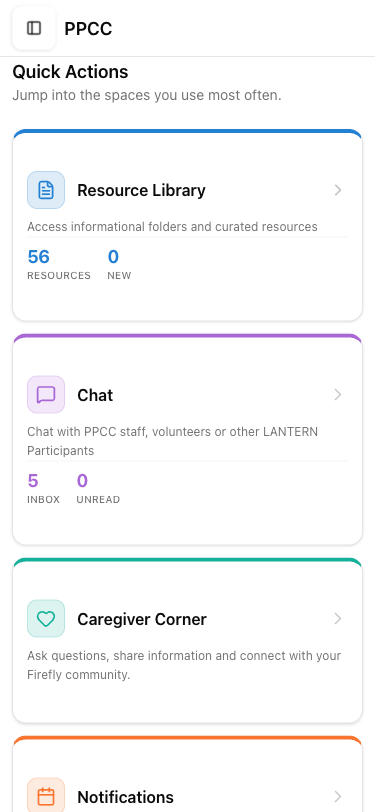
After the tour and the setup checklist, the family member lands on the home screen (the member dashboard). This is where they start every time they open Firefly. Here's what's on it:
The child's Emergency Card is one of the first things families will see. It shows allergies, rescue medications, and blood type — everything a paramedic or ER nurse needs to know, in big clear text. If the family has more than one child, they can switch between them with the picker at the top. The Emergency Card only appears once a child's profile has been added.
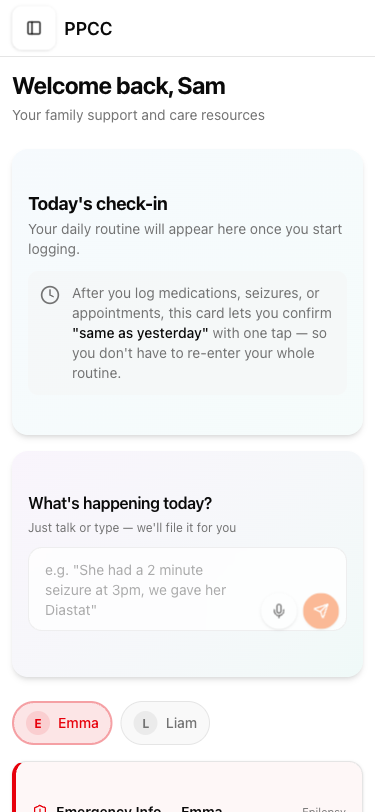
Below that, families will see:
- Today's Check-in — the daily care log (more on this below)
- "What's happening today?" — where the parent can type something quick and Firefly handles the rest
- Quick Actions — shortcuts to the four most-used areas: Resource Library, Chat, Caregiver Corner, and Notifications
- Care plan progress — which forms have been started and completed
- Family overview — the family's children and family members
A Day in Their Life
Families don't use Firefly feature-by-feature — they use it moment-by-moment. These scenarios show how Firefly fits into the situations PPCC families actually face, and which parts of the app connect together. Each scenario is anchored to one of the three families from the previous section — keeping a specific family in mind makes the walkthrough land harder than "a parent."
Morning Routine with the Washington Twins
You're Denise Washington. It's 6:40am. Kiara and Marcus Jr. will be awake in twenty minutes.
Before the twins wake up, you have exactly fifteen minutes to get medications sorted, check the home nurse's overnight notes, and make sure nothing from yesterday's pulmonology call needs to go into writing. Here's how Firefly fits into that window.
- Open Firefly. The child picker at the top of the screen shows both twins. Tap Kiara first — she's the one with the trach and more to track.
- Kiara's daily check-in card shows what the night nurse logged at 4am: meds on schedule, oxygen settings unchanged, no suctioning events. Tap "Same." Done in five seconds.
- Tap Marcus Jr. in the picker. His check-in shows he had a rougher night — more wheezing than usual. Tap "Edit", add a note that you gave an extra nebulizer treatment at 2am, tap Save.
- While drawing up Marcus Jr.'s morning meds, you remember the pulmonologist said to watch for side effects on the new dose. Tap the microphone on the "What's happening today?" box and say: "Marcus Jr. seemed really drowsy after his morning Flovent, more than usual." Firefly files it into his Medication Side Effects log.
What just happened: In under two minutes, both twins' daily records are current, and a medication concern is timestamped for the next pulmonology call. When you message the pulm nurse later today, you can open Marcus Jr.'s Medication Side Effects log and tell her exactly when it started — with the exact date and time.
In the ER at 2am with Ana and Mateo
You're Ana. It's 2:03am. Mateo just had a seizure that lasted four minutes. You gave Diastat. The seizure stopped. You called 911 anyway because it was longer than three minutes and that's what his neurologist told you to do.
You're in the back of an ambulance, one hand on Mateo, the other on your phone. Here's what you do with Firefly.
- Open Firefly. The Emergency Card is the first thing on screen — no scrolling, no logging in again.
- Hand the phone to the paramedic. She sees Mateo's blood type, his rescue medication with exact dosage (Diastat 10mg — administer rectally for seizures > 3 minutes), his allergies with severity and action plans, and his emergency neurologist with a tap-to-call number.
- At UPMC Children's, the ER nurse asks about insurance. You tap "All medications & insurance" on the Emergency Card — policy number, group number, and plan are right there. No wallet, no card.
- The ER doctor asks what medications Mateo is on. You scroll to Current Medications — every med, every dose, every prescribing doctor. She nods and types into her own system.
- At 4:30am, back home, Mateo is asleep in your bed. You tap the microphone: "Seizure at 1:58am, lasted four minutes, gave Diastat. ER visit at Children's, discharged at 4am, neurologist on call is Dr. Patel." Firefly files it into the Seizure Log.
What just happened: The ER got everything it needed from your phone screen — Mateo's full medical history, insurance, medications, and his neurologist's number. All there, all accurate, all in one place. And tonight's seizure is documented with a timestamp for Dr. Patel's review Tuesday morning.
New Specialist Appointment with Jayden
You're Ruth. Jayden has his first appointment with the adult cardiology team next week — part of his transition-to-adult care. You want the new cardiologist to have his history before he even walks in the door.
Jayden's DMD puts him at elevated risk for cardiomyopathy, so the cardiologist needs the full picture: his genetic testing results, his echo history, which medications he's been on, which he reacted to. You've been through this introduction with seven specialists already. Firefly has the history ready to share before Jayden walks in.
- Open Firefly and go to Digital Care Plan.
- Find the Health History form and tap Share via Email — enter the cardiology office's email address.
- Do the same for Current Medications and Emergency Information. Three emails, two taps each.
- At the appointment, you open Firefly to Jayden's Health Profile — the cardiologist can see every diagnosis, every surgery, every allergy on screen. She stops asking and starts reading.
- She wants to add a new ACE inhibitor. You update it right there: go to the Health Profile → Medications and tap + Add. It's in the system before you leave the room.
What just happened: The cardiologist had context before Jayden was even in the waiting room. You didn't have to recite a medical history you've recited dozens of times. And the new medication is logged before it has a chance to get written on a sticky note and lost.
School Needs Updated Paperwork for Mateo
You're Ana. It's early August. Mateo starts second grade in three weeks. The school nurse just emailed: "We need updated medical forms for the new school year — emergency plan, medication authorization, daily care routine, and the seizure action plan."
Last year, you printed blank forms, filled them in by hand, scanned them on your phone, and emailed them back. You did it in August and again in January when Mateo's medication changed. This year, you have Firefly.
- Open Digital Care Plan and check that these forms are current for Mateo:
- Emergency Information — including Mateo's seizure action plan
- Current Medications — with the new Keppra dose Dr. Patel adjusted in June
- Daily Care / Routine
- School/Daycare Schedule
- Medication Administration Record — for the meds he gets during the school day
- Tap Share via Email on each one and send to the school nurse. Five forms, ten taps, three minutes.
- You also tap Share on Mateo's Emergency Card and choose Download PDF — you want a printed copy for his backpack and one for the after-school program.
What just happened: Paperwork that used to take a full evening was handled in under ten minutes from your phone. The school nurse got clean, typed PDFs she can file directly. And next August, Mateo's forms are already filled — you just update what changed.
Night Nurse Handoff at the Washingtons
You're Denise. It's 8:15pm. The overnight nurse, Tasha, just arrived. You need to hand off everything she needs to know about both twins before you finally go to bed — you've been up since 5:30am.
Tasha is new this week. She's a good nurse, but she hasn't worked with twins before, and she's still learning Kiara's trach routine. Firefly replaces the three-page handwritten note you used to leave on the counter.
- Add Tasha as a family member (Dashboard → Family Support → "Add to my team") with her relationship set to "Home Nurse." She gets an email invite; once she signs in on her phone, she can open Firefly and see both twins.
- For tonight, before she signs in, share the critical forms by email. For Kiara: Emergency Information, Current Medications, Respiratory Care (trach schedule, suction settings), and Feeding Details (G-tube rate, formula). For Marcus Jr.: Emergency Information, Current Medications, and Feeding Details. Use the child picker to switch between the twins.
- Tell Tasha that if anything goes wrong, the Emergency Card for each twin has the rescue med doses and the pulmonologist's on-call number. She can tap to call straight from Firefly.
What just happened: Tasha has two complete handoffs on her phone — one for Kiara, one for Marcus Jr. — with every detail spelled out and every phone number one tap away. You can go to bed.
Feature Reference
The sections below cover each Firefly feature in detail. Use these as a reference when families have questions about a specific part of the app.
In an Emergency Live
Purpose: Families can show emergency responders their child's critical medical info instantly.
- Open Firefly
- The Emergency Card is the first thing on screen — no scrolling needed
- Show the screen to the paramedic or ER nurse
- If they need more detail, tap "All medications & insurance"
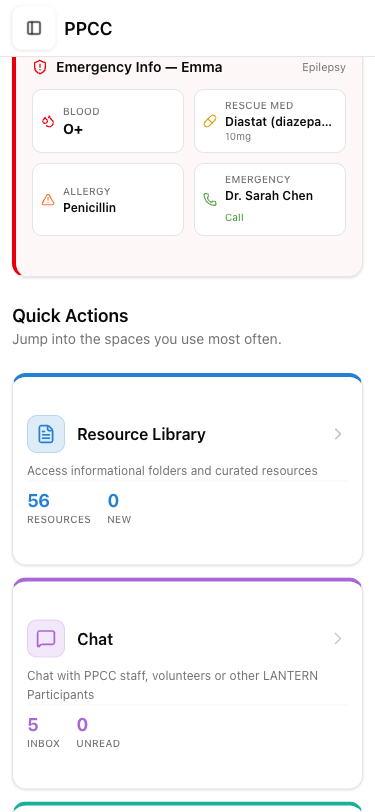
The card shows:
- Allergies with severity and action plan — example: "Penicillin — Severe — Do not administer. Contact prescribing physician."
- Rescue medications with exact dosage and instructions, flagged with a bright "RESCUE" badge — example: "Diastat (diazepam) 10mg — Administer rectally for seizures lasting > 3 minutes"
- Blood type
- Emergency specialist with a tap-to-call phone number
If the family has more than one child, use the picker at the top of the screen to switch.
Tapping "All medications & insurance" opens the child's full Health Profile — everything from insurance policy numbers to diagnoses to pharmacy contacts. This is useful when the ER needs to verify insurance, look up a prescription, or call the child's specialist.
Sharing the Emergency Card
Families often need to hand off a child's emergency info to someone who isn't in Firefly — a school nurse before the first day, a babysitter, a grandparent, or an ER team that needs a printout. The Share button on the Emergency Card makes this a two-tap process.
- Tap Share on the Emergency Card
- Choose one of two options:
- Download PDF — a single-page, print-ready PDF of the child's emergency info: name, age, primary diagnosis, blood type, allergies (severity-sorted, with severe allergens flagged), rescue medications with doses and instructions, and emergency contacts with phone numbers. Save it to the phone, email it, text it, or print it.
- Copy as text — copies the same information as plain text to the phone's clipboard. Paste it into a text message, an email, or a school form.
Example: Before Monday morning, a parent taps Share → Download PDF, emails it to the school nurse, and prints a copy for the child's backpack. The nurse has everything — rescue meds, severe allergies, specialist phone numbers — without ever opening the app.
- Would a parent find rescue meds and severe allergies fast enough in a real crisis — say, handing the phone to an ER nurse without explanation?
- Is the Share flow something you could walk a family through in under a minute? Would they understand "Download PDF" vs. "Copy as text"?
- Is anything you'd expect on an emergency card missing for the families you serve (DNR status, medical device settings, seizure action plan, feeding pump rate, etc.)?
Quick Capture — Logging Something That Just Happened Live
Purpose: Families can log care events by voice or text — just say or type what happened, and Firefly files it into the matching care log automatically (Seizure Log, Medication Administration Record, Pain Assessment, and so on). The classifier today routes most reliably into log-type forms. It can also target profile forms like Pharmacy and Insurance, but the full end-to-end flow from a voice entry into a populated profile form is still being finalized — that's a fast-follow after launch.
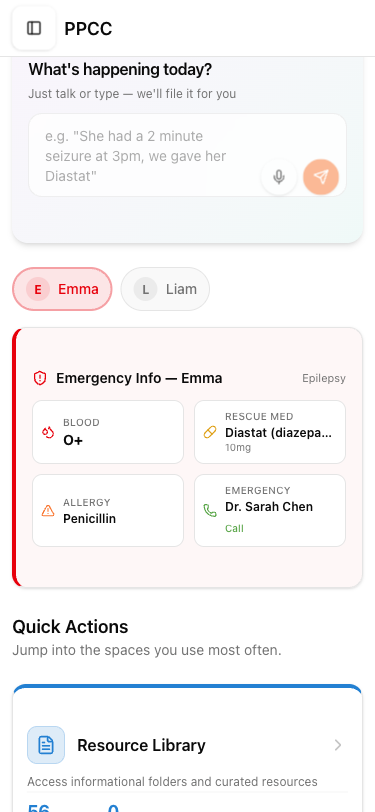
Option 1: Voice (hands-free)
When a parent's hands are full — holding their child, driving home from a doctor's appointment, or in the middle of a routine — they tap the microphone icon and just talk.
- Find "What's happening today?" on the home screen
- Tap the microphone icon (to the right of the text box)
- Say what happened in plain language — for example:
- "She had a seizure at 3pm, we gave her Diastat"
- "Gave rescue inhaler at school pickup"
- "He refused his afternoon meds"
- Firefly converts the voice to text — review it, then tap Send
- Done — it's filed automatically
Option 2: Type
- Tap the text box and type what happened
- Tap Send
Either way, Firefly may ask a follow-up question if it needs a little more detail. Otherwise, done.
What happens after sending — the review step
When a family taps File it, Firefly doesn't just drop the entry into a form silently. It first shows a short review card so the parent can confirm what it's about to do. The card has three parts:
- "This looks like it belongs in:" and the name of the matching care log — for example, Seizure Log.
- A short plain-language explanation of why Firefly picked that log, so families can see Firefly isn't guessing blindly.
- The specific details Firefly pulled out of what the parent wrote — things like the date and time, the duration, or the medication given.
From there, families have two choices:
- Tap Go to Form to open the matching care log with the extracted details already filled in. The parent can review, add anything Firefly didn't catch (like seizure type or body parts involved), and tap Add Entry to save.
- Tap Not right if Firefly picked the wrong log, so the family can redirect it instead of fighting with an entry in the wrong place.
The intent is that families stay in control of what gets recorded, while still skipping the slowest part — typing the same details into a long form by hand. The classifier gets better over time, and the "Not right" button is how that feedback loop works.
What kinds of things Firefly recognizes
Firefly reads what the parent said or typed, figures out what kind of care event it is, and suggests the matching care log. Here are real examples:
| The parent says or types… | Firefly files it in… |
|---|---|
| "She had a 2-minute seizure at 3pm, we gave her Diastat" | Seizure Log — with time, duration, and medication given |
| "Gave rescue inhaler at school pickup" | Current Medications — logged as a rescue med administration |
| "He refused his afternoon meds" | Medication Administration Record — noted as missed dose |
| "She was in a lot of pain after therapy today" | Pain Assessment — with context from therapy |
| "Had a rough night, up 4 times, lots of coughing" | Respiratory Care or Sleep Profile — depending on details |
| "OT session went well, she's gripping objects now" | Therapy Log — with progress noted |
| "Changed G-tube dressing, site looks good" | Gastrostomy Tube Feeding — with care note |
| "Bowel movement at 2pm, normal" | Bowel Management — with time and description |
The entry goes into whichever child is selected at the top of the screen. If Firefly isn't sure which form fits, it will ask.
Where to find entries later
- Scroll to the Digital Care Plan section on the home screen
- Find the form that matches what was logged — for example, if a seizure was logged, open Seizure Log
- The entry is there — timestamped, with the details provided
Families don't need to check this every time. Firefly handles the filing. But if a doctor asks "when was her last seizure?" — the parent opens the Seizure Log, and every entry ever logged is there in order.
- Would voice logging actually work for a parent with one hand on a child? Try it in a loud room or with background noise — that's the real test.
- Are the event types Firefly recognizes the right ones for what your families live day to day? Is anything routinely missed?
- If Firefly files something into the wrong form, how would a family fix it? Is that path obvious?
Your Daily Check-In Live
Purpose: A 30-second daily record of the child's routine — medications, how they're doing, anything notable.
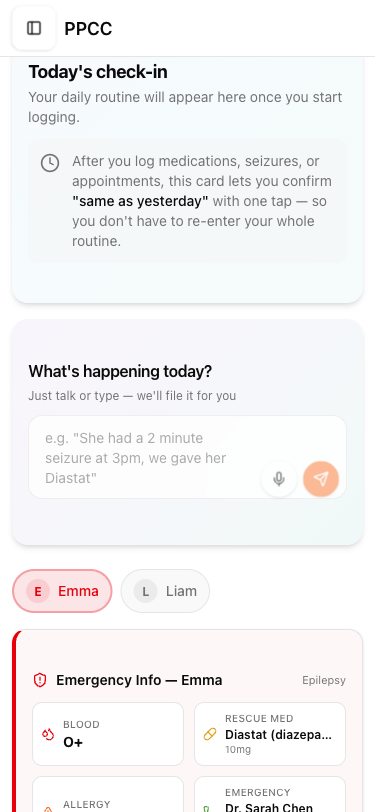
First Time
- Tap the check-in card on the home screen
- Fill in today's routine — medications given, how the child is doing, anything notable
- Tap Save
Every Day After That
- The parent will see what was logged yesterday
- If nothing changed, tap "Same" — done in 30 seconds
- If something's different, tap "Edit" to update the details, then tap Save
Outcome: Each day's check-in is saved as a timestamped record. Over time, this builds a day-by-day log of the child's care — when medications were given, how they felt, what changed. When a doctor asks "how has she been doing this week?" or a school nurse needs to understand the pattern, the parent can open the check-in history and show them.
The check-in also feeds into the Daily Care / Routine form in the Digital Care Plan, so the information logged here helps keep the care plan up to date.
- Is 30 seconds realistic for a parent who's exhausted, or would it become a chore families quietly abandon after the first week?
- Does "Same as yesterday" actually match how families think, or is it too much to scan without reading carefully?
- Is anything Krista or Rose would want to see in the daily routine missing from the check-in?
Filling Out Your Child's Care Forms Live — expanding in Phase 2
Purpose: Families complete their PPCC care plan forms on their phone — save progress, pick up where they left off, and share completed forms with anyone who needs a copy. All 52 PPCC templates are available per child, so a family with more than one medically complex child has a complete plan for each of them. The dashboard counter may show a slightly higher total because the Digital Care Plan folder also includes a few earlier planning resources that PPCC seeded during development.
How to get here: On the home screen, scroll to the Digital Care Plan section. Or open the menu → Children → tap the child to see their assigned forms.
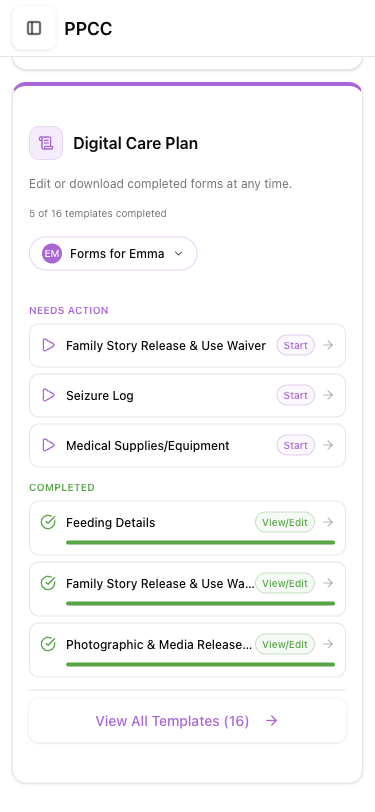
What families will see:
- A picker at the top to choose which child (if the family has more than one)
- Needs Action — forms not yet started
- Completed — forms that have been finished
What kinds of forms are there?
These forms are organized into three types:
Profile forms — fill these out once, update when things change:
- Emergency Information, Family/Guardian Information, Health History
- Daily Care / Routine, Sleep Profile, Mealtime Routine, Feeding Details
- Communication Methods, Likes & Dislikes, Bathing, Dressing, Dental Care, Skin Care
- Transportation, Child's Insurance, Moving Checklist
Logs — these grow over time as entries are added (newest first):
- Seizure Log, Pain Assessment, Therapy Log, Bowel Management, Respiratory Care
- Current Medications, Medication Side Effects, Hospitalizations, Procedures/Surgeries
- Growth Chart, Immunization Record, IFSP/IEP/ISP Notes
- Gastrostomy Tube Feeding, Palliative/Comfort Care Notes, Respite Care Log, Medical Supplies/Equipment
Schedules — weekly grids for recurring routines:
- Medication Administration Record, Home Schedule, School/Daycare Schedule, After School Center Schedule, Transportation Bags
Filling out a form
- Tap Start on any form
- Fill in the sections — answers save automatically, so the parent can leave and come back anytime
- Watch the progress bar to see how far along the form is
- When the form is complete, it moves to "Completed"
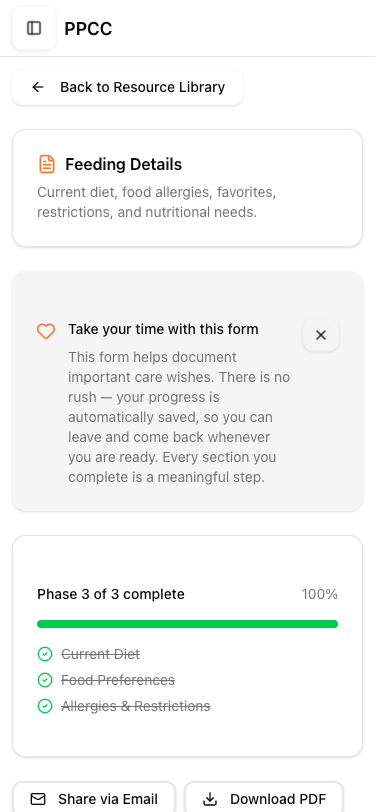
Sharing a completed form
Once a form is complete, families can send it to anyone who needs it:
- Tap Share via Email — send a copy to a doctor, school, therapist, or family member
- Tap Download PDF — save it to the phone to print or bring to an appointment
Example: A parent completes the Emergency Information form. Before the child's next ER visit, they tap Download PDF and have it ready on their phone. Or they email a copy of the Current Medications form to a new specialist before the first appointment — the doctor already knows what the child is on before they walk in the door.
The Medical Power of Attorney form includes Pennsylvania-specific pages for witness and notary signatures that can be downloaded and printed.
Advance directives. Advance directive documents live inside the Digital Care Plan as regular care plan forms — not a separate section. Medical Power of Attorney is the main one; any future advance-directive templates will appear in the same Needs Action / Completed list as the rest of the DCP.
- Are all 52 PPCC templates accounted for? Is anything named differently than your families would expect?
- Does the auto-save work well enough that a parent could leave mid-form for a diaper change and come back without losing anything?
- When a family shares a completed form, is the PDF or email handoff clean enough to send to a new specialist or school nurse?
Your Child's Complete Medical Profile Live
Purpose: Keep the child's full medical history in one place — insurance, diagnoses, allergies, surgeries, pharmacy, and diet — so families never have to start from scratch with a new provider.
How to get here: Tap "All medications & insurance" on the Emergency Card, or open the menu → Children → tap the child to access their Health Profile.
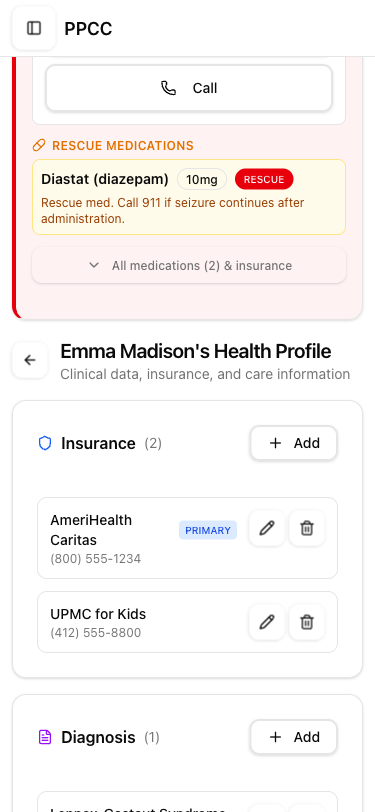
The child's Health Profile has six sections. Here's what each one stores and why it matters:
| Section | What's entered | Why it matters |
|---|---|---|
| Insurance | Policy number, group number, provider, plan type | ER staff and specialists can verify coverage right from the screen |
| Diagnosis | Each diagnosis with date and provider who made it | New providers see the full picture on the first visit |
| Allergy | Allergen, reactions, severity, action plan | Marked as "emergency" = appears on the Emergency Card automatically |
| Surgery | Procedure, date, hospital, surgeon | Surgical history is always asked and always hard to remember — it's here once |
| Pharmacy | Pharmacy name, phone number, address | A doctor can call in a prescription while the family is still in the appointment |
| Diet & Nutrition | Dietary needs, restrictions, feeding method | Schools, respite caregivers, and new therapists need this on day one |
How to add or edit a record
- Find the right section and tap the + Add button next to it
- Fill in the details and tap Save
- To change something later, tap the pencil icon next to the record
- Make changes and tap Save Changes
Example: Adding an allergy
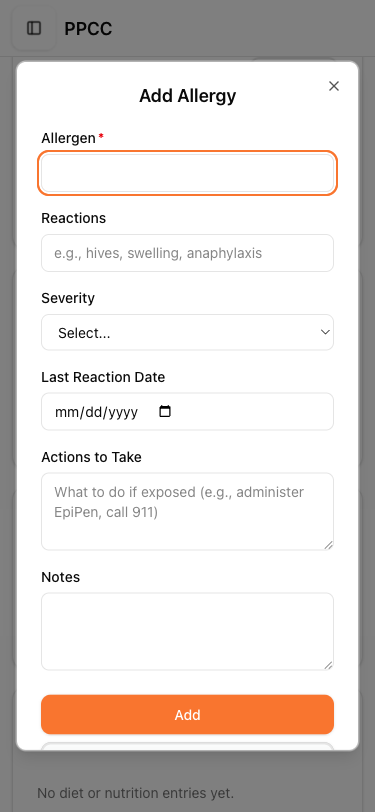
When adding an allergy, the parent fills in:
- Allergen — what they're allergic to (e.g., Penicillin)
- Reactions — what happens (e.g., hives, difficulty breathing)
- Severity — Mild, Moderate, or Severe
- Action Plan — what to do if exposed (e.g., "Administer EpiPen Jr immediately. Call 911.")
Each child has their own separate profile — switching children at the top switches everything.
- Are the six Health Profile sections the right categories, or would your families need more (e.g., equipment, therapies, respite team, school team)?
- Is "Actions to Take" on the allergy form visible enough that an ER nurse would see it without the parent pointing?
- Does this cover every clinical field your families keep in Lightning Bug today, or is something quietly missing?
Resource Library Live
Purpose: All the programs, services, and tools PPCC shares with families — in one place.
How to get here: Tap Resource Library from the Quick Actions on the home screen, or open the menu → Resource Library.
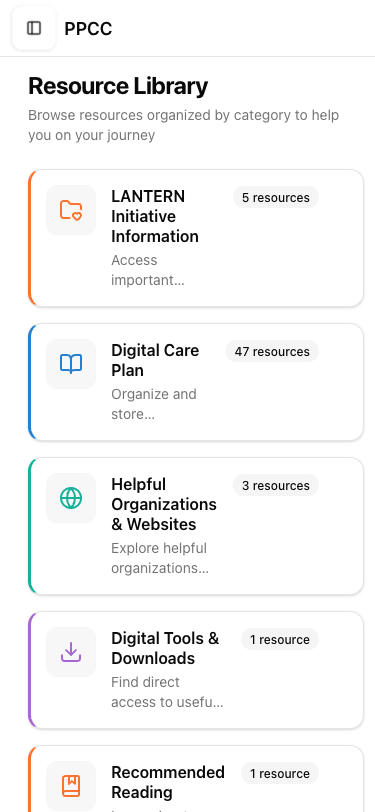
- Tap a folder to see what's inside
- Tap a resource to open it (links open in the browser, PDFs download to the phone)
- PPCC adds new resources over time — check back for new materials
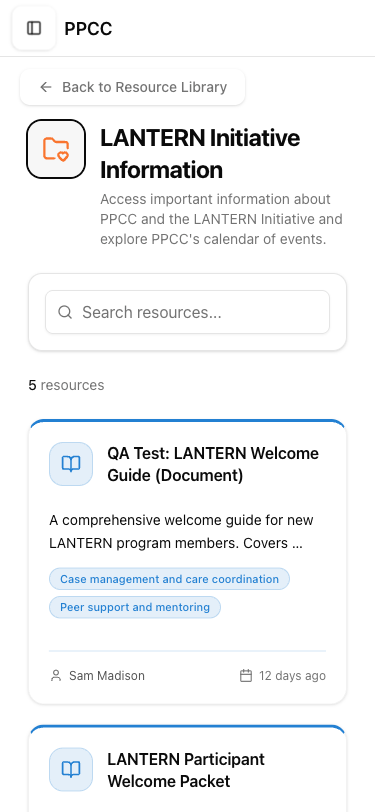
| Folder | What's Inside | Status |
|---|---|---|
| LANTERN Initiative Information | Program info and introductory materials | Seeded |
| Helpful Organizations & Websites | Support services PPCC recommends | Seeded |
| Digital Tools & Downloads | Online toolkits and videos | Seeded |
| Recommended Reading | Books and educational materials | Seeded |
| Digital Care Plan | Fillable care plan templates (the same templates shown on the dashboard) | Live |
| Events | Upcoming activities and workshops | Seeded |
The four content folders above (LANTERN, Organizations, Tools, Reading) each hold a growing collection of seeded resources, and the Digital Care Plan folder holds the PPCC care plan templates. The Events folder is in place and being populated as PPCC schedules new events — the exact count will shift as content is added, so families can check back for new material.
Every family sees the same Resource Library. Nothing is assigned per family. As PPCC adds new resources, they appear for every family automatically the next time they open Firefly.
Outcome: Everything PPCC shares is here, organized and searchable.
- Are the six folders the right way to group how PPCC shares resources with families today? Would a parent find what they need in under 30 seconds?
- Is there anything PPCC shares informally (handouts, links, one-off emails) that should live here instead?
- When a resource is a PDF or a video, does the experience of opening it feel smooth enough that a tired parent wouldn't bounce?
Chatting with PPCC Live
Purpose: Families can send and receive messages with their own family members and with Krista or Rose at PPCC, right inside Firefly.
How to get here: Tap Chat from the Quick Actions on the home screen, or open the menu (three lines, top left) and tap Chat.
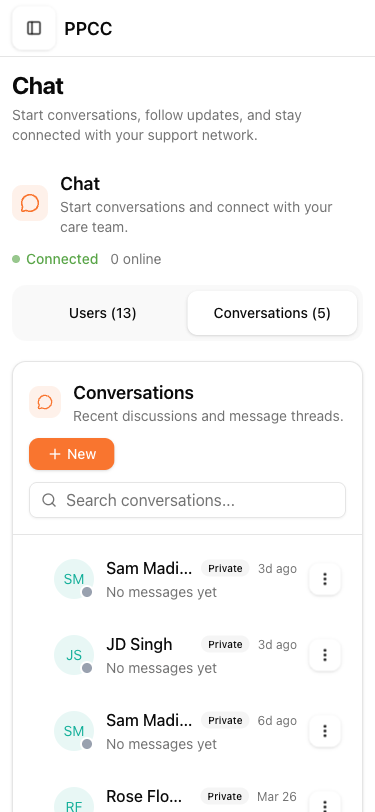
Who families can message at launch:
- Their own family members — anyone they've added to their team
- Krista at PPCC
- Rose at PPCC
At launch, Krista and Rose are the direct line into PPCC for every LANTERN family. The broader PPCC care team will become available inside Chat over time as more staff come online.
- Tap New
- Choose Private for a one-on-one message
- Pick Krista, Rose, or one of their own family members, then type the message
- Tap Send
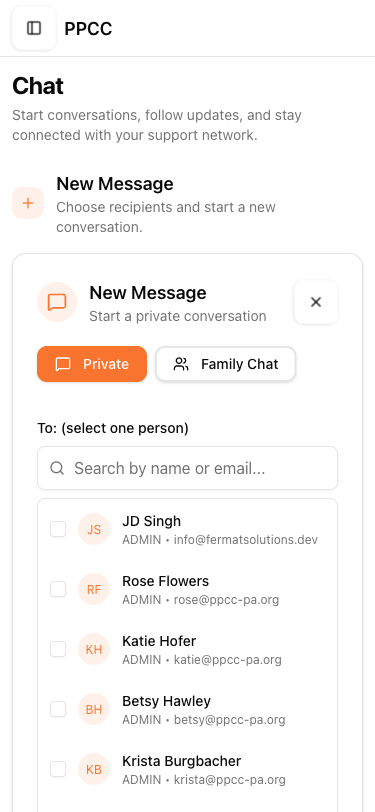
Family group chat: Families can also create a family chat that includes everyone in the household — tap New and choose Family Chat. Family members are added automatically. There's only one family chat per family, so if one already exists, Firefly goes straight to it.
A green dot with a "Connected" label appears at the top when messaging is active. New messages show up as badges on the Chat icon so the user knows when someone's replied.
Outcome: Messages are saved in Firefly — organized by conversation, easy to find. Parents have a direct line to Krista and Rose, always one tap away.
- Is a family having Krista and Rose as their direct contacts at launch the right scope, or do some families need a wider set of PPCC staff available on day one?
- Would families know who to message for what? Is the "Private" vs. "Family Chat" distinction clear?
- When the recipient is offline, does the experience still feel responsive (or does it feel like the message disappeared into a void)?
Announcements from PPCC Live
Purpose: When PPCC has something that every family needs to hear — a program update, an event reminder, a weather closure — they send it once and it reaches all families at the same time.
Announcements arrive inside Chat, alongside regular messages. They look a little different (marked as an Announcement) so families can tell them apart from a direct message meant just for their family.
How families receive them: Nothing to set up — an announcement appears in Chat the moment PPCC sends it, with the same notification badge as any other new message. Families don't need to reply (and usually can't), they just read it.
Outcome: Families hear from PPCC as a program, not just through one-on-one chat. When something matters to everyone, it reaches everyone.
- Is an Announcement easy to distinguish from a regular Chat message, or does it get lost in the thread?
- Does the notification for an Announcement feel proportional — attention-getting without being disruptive?
- Is it clear when a family can't reply, or does the UI invite a reply that won't go anywhere?
When Families Are Ready
These features are available whenever families are ready. No rush.
Caregiver Corner Live
Purpose: A space for LANTERN parents to connect with each other — ask questions, share what's working, and learn from each other.
How to get here: Open the menu (three lines, top left) → tap Caregiver Corner.
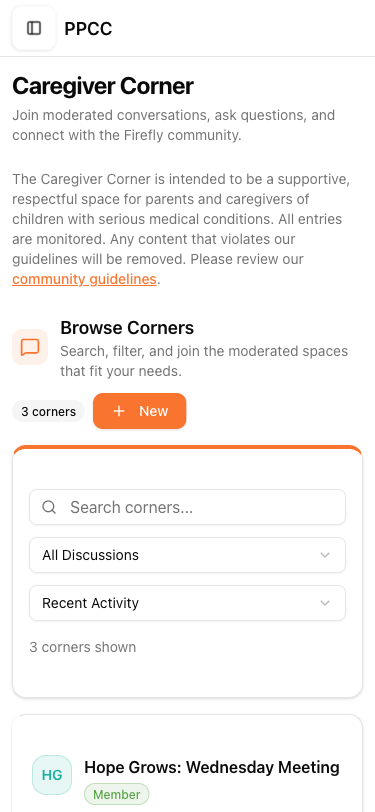
- Browse the list of "Corners" (discussion groups)
- Tap into any Corner to read posts
- Tap a post to read replies
- Tap Reply to respond, or tap "+ New Post" to start a discussion
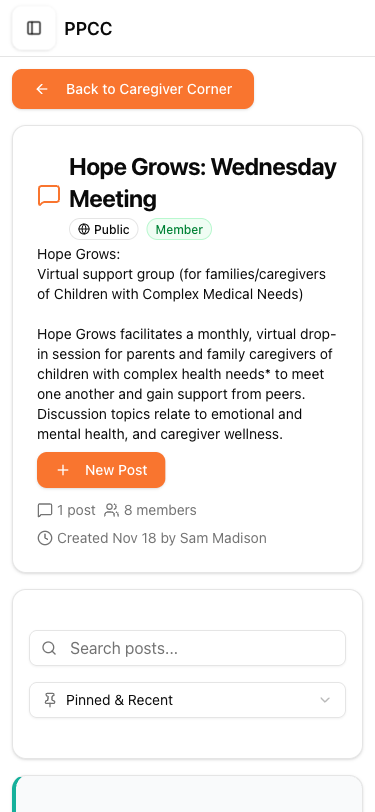
Caregiver Corner launches with a single shared space for LANTERN families to post questions, share what's working, and reply to each other. Topic-specific sub-groups (waiver help, school advocacy, transition planning, and so on) can be added as PPCC sees what families want to talk about.
Outcome: Everything is monitored by PPCC for safety. New spaces can be added over time as the community grows.
- Is a single shared Caregiver Corner enough to start, or do your families need specific topic sub-groups on day one (siblings, bereavement, school advocacy, transition to adulthood)?
- Would your families actually post in a semi-public space, or do they need it to feel more private before they open up?
- Does PPCC have the visibility and moderation tools it needs here, or would Krista or Rose want more control over what appears?
Adding Family Members Live
Purpose: Families can add other caregivers (spouse, grandparent, etc.) so they can access the child's info and join the family chat.
How to get here: On the home screen, scroll to the Family Support section → tap "Add to my team".
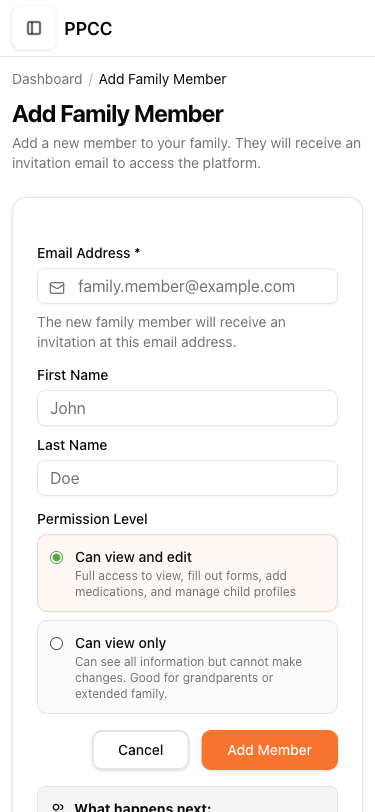
- Enter their name
- Enter their email address
- Choose their relationship to the child (Mom, Dad, Grandma, etc.)
- Tap Save
Outcome: The new family member receives an email invite to join Firefly. Once they sign in, they appear in the family group chat automatically. This also helps medical providers understand who's who.
- Is the relationship list (Mom, Dad, Grandma, Grandpa, etc.) the right set of options for your families, or does it need more (foster parent, kinship caregiver, aunt, godparent)?
- Would a family member who receives the invite email understand what Firefly is and why they're being added?
- Is there anything a family would want to do when they add someone that isn't possible yet — setting permissions, limiting what that person can see, or removing someone later?
Finding Your Way Around
Anywhere in Firefly, tapping the three lines in the top-left corner opens the menu. From there:
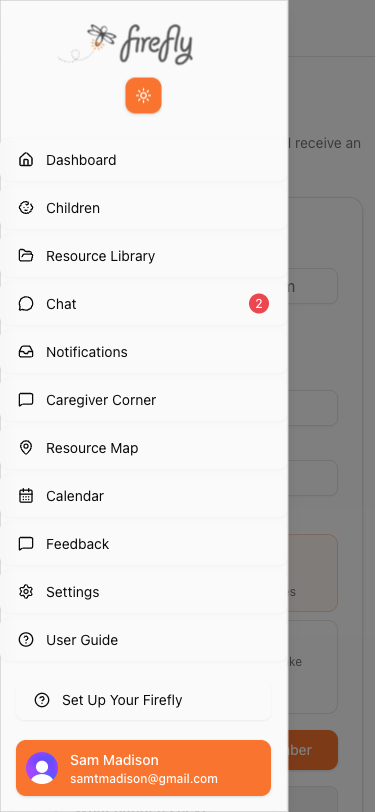
- Dashboard — the home screen
- Children — go directly to the children's profiles
- Resource Library — browse resources
- Chat — message PPCC
- Notifications — see what's new
- Caregiver Corner — connect with other parents
- Resource Map — find nearby services
- Calendar — upcoming events
- Feedback — submit feedback about Firefly directly to the team
- Settings — manage profile and preferences
- User Guide — access the built-in help guide
The user's name appears at the bottom of the menu — tap it to sign out.
Notifications
Purpose: Families see messages, alerts, and activity from their care team in one feed.
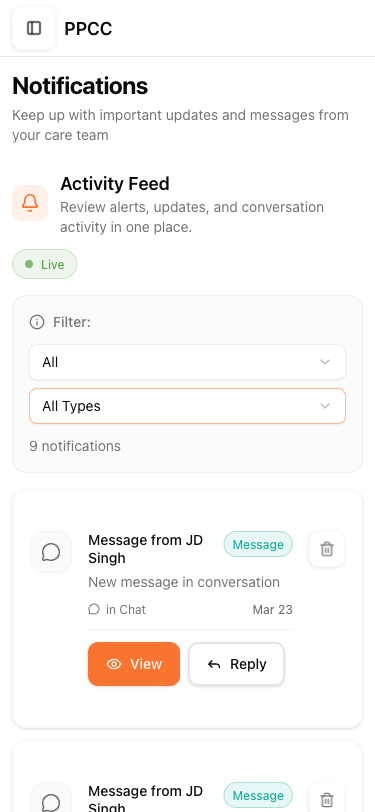
- From the home screen, tap Notifications in the Quick Actions
- See all notifications with timestamps
- Use Filter to narrow by type
- Tap "View" to see the full notification
- Tap "Reply" to respond directly
Settings & Signing Out
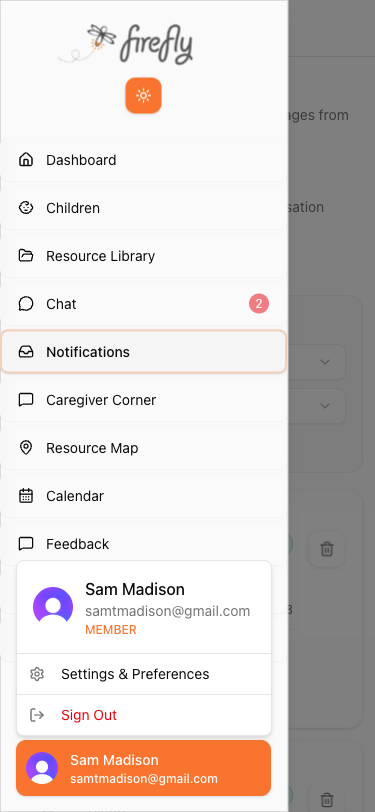
- Tap the three lines in the top-left corner to open the menu
- Tap the user's name at the very bottom
- A popup shows the name, email, and role
- Tap "Settings & Preferences" to manage the profile
- Tap "Sign Out" to sign out
Quick Reference
| I want to… | Here's how |
|---|---|
| Show the ER the child's info | Open Firefly — Emergency Card is the first thing on screen |
| Log something that just happened | Type it in the "What's happening today?" box on the home screen |
| Do my daily check-in | Tap the check-in card → "Same" if nothing changed, or "Edit" to update |
| Fill out a care plan form | Scroll to Digital Care Plan section on the dashboard |
| Update medications or allergies | Tap "All medications & insurance" on Emergency Card |
| Share the emergency card with a school or nurse | Tap Share on Emergency Card → Download PDF or Copy as text |
| Message Krista or Rose at PPCC | Tap Chat from Quick Actions → New → Private → pick Krista or Rose |
| Submit feedback | Menu → Feedback |
| Talk to other parents | Menu → Caregiver Corner |
| Find resources PPCC shared | Tap Resource Library from the home screen |
| Add a family member | Dashboard → Family Support → "Add to my team" |
| Add Firefly to the home screen | See "Add Firefly to Your Home Screen" section above |
| Take the tour again | Menu → Set Up Your Firefly → Retake this tour |
| Sign out | Menu → tap the user name → Sign Out |
Help Us Make Firefly Better
LANTERN families are among the first to use Firefly, and their feedback directly shapes what gets built next. Encourage families to share what they're experiencing — especially early on.
When talking to families about feedback, here's what's most helpful to hear:
- What were they trying to do?
- What happened instead?
Maybe a form was confusing. Maybe they couldn't find a resource they expected to see. Maybe something worked exactly right and they want more of that. All of it helps.
Families can share feedback by tapping Feedback in the sidebar menu — this sends it directly to the team. They can also tell Krista or Rose at PPCC directly. Every piece of feedback makes Firefly better for them and for the families who come after them.
This guide reflects Firefly as of the April 2026 launch.
Firefly by Your Villages — Care Coordination for Families
Questions? Contact the PPCC team lead or email support@yourvillages.com